
Correct an email after it’s sent
Put a hidden banner in your email before you send it. If something changes after the send, switch it on, and emails opened from then on show it. Switch it off, and it’s gone.
Build it free. Switching it on needs Pro, $79/mo. Compare plans
Spring sale: 20% off everything this weekend
SPRING SALE
20% off everything
Online and in store, Saturday and Sunday.
Use code SPRNG20 at checkout
Shop the saleThe email is a recreation. The banner is the real image, drawn from the Offer correction design.
Set it up before anything goes wrong
Once an email lands, its words are fixed. Its images aren’t: they load when the email is opened. A critical message is an image you control after the send.
Design it while nothing is wrong
Start from one of four designs or a blank banner, and write what you’d want readers to see if this send went sideways.
Put it in the email, switched off
Paste its image tag at the top of your template before you send. Off, it’s a transparent pixel: readers see nothing and it takes no room.
Switch it on if plans change
An outage, a delay, a moved date, a wrong code. Flip the switch and emails opened from then on show the banner. Flip it back and it’s gone.
Four designs that show the change
A banner that only says “there’s been a change” sends readers hunting. Each starting design shows what changed: the old date beside the new one, the wrong code above the right one. Edit everything in the same designer as dynamic images (text, colours, fonts, shapes, your own images), or start from a blank 600 × 200 banner.
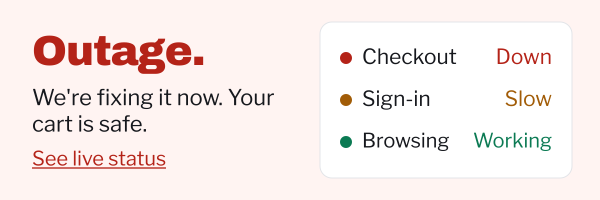
Service outageLists what’s down, what’s slow and what still works. 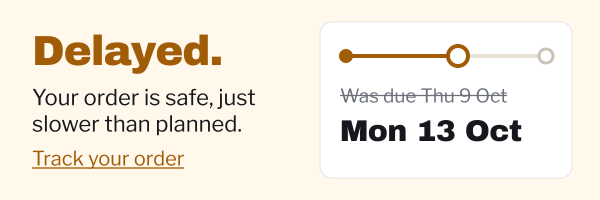
Shipping delayStrikes the old delivery date and puts the new one beside it. 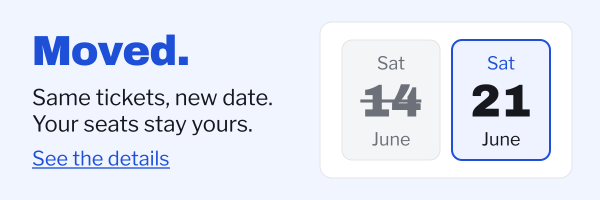
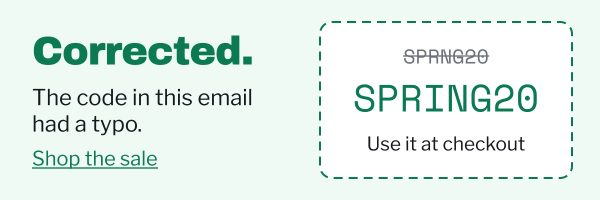
Event changeCrosses out the old date for the new one. Offer correctionStrikes the wrong code above the right one.
On a phone the banner shows at about half size, so keep the words few and big: what changed, and what to do now. Banners can be 100 to 600 pixels wide and up to 900 tall.
A switch your whole team can see
Whoever flips it is changing what your entire list sees, so the switch is built to be deliberate and visible.
- A confirmation each way. Switching on or off asks first, so nobody puts an outage banner in front of your list by accident.
- The whole team hears about it. Every member gets an email and an in-app notice saying who switched which message, and when someone edits one that’s live. Nobody should learn about the banner from a customer.
- Edit it while it’s on. Change the wording or the link as the situation moves. Readers see the new version from their next open.
- The link comes later. The banner is always a link, and you can set where it goes after the send, when you know: a status page, tracking, the new event details.
Off
A transparent 1 × 1 pixel. It takes no room in the email, nothing shows when images are blocked, and no impressions are counted.
On Pro
The banner, at the size you designed it, linked to wherever you point it. Opens count from the moment it’s on.
POST /v1/critical-messages/ID/activateOr switch it from Zapier or the MCP server.
One tag, at the top of your template
A critical message is one linked image tag with no size set. Paste it into Klaviyo, Mailchimp, HubSpot, Brevo, or any ESP that accepts an image tag with merge tags. Paste it once, and it waits there until you need it.
It goes in like any other image tag. The setup guides show where that is in 13 ESPs.
Building for several clients? Create and update any service through the REST API or the MCP server, on every paid plan.
The embed code
<a href="https://next.alterable.com/critical-messages/click/MESSAGE_ID">
  <img src="https://next.alterable.com/critical-messages/MESSAGE_ID.png" alt="" border="0" style="display:block;max-width:100%;height:auto;border:0;" />
</a>Questions about critical messages
What do readers see while it’s off?
Nothing. Off, the image is a transparent 1×1 pixel, and the embed code carries no width, height or alt text, so it takes no room in the layout and leaves nothing behind when images are blocked.
Will everyone see it once it’s on?
Most emails opened for the first time after you switch show it: a change reaches a reader the next time their email app loads the image. Apple Mail can hold on to the copy it already loaded, though, so someone who opened the email before the switch may see the old state for up to a couple of days. For something every customer must know, send a follow-up as well.
Does a message that’s switched off use impressions?
No. Opens only count while the message is on, so a banner waiting in your templates costs nothing until you need it.
Can the banner be personalized?
Not this one. Every reader sees the same banner, which is what lets a send spike render it once rather than per open. For a name, a date or a value per reader, use a dynamic image.
Can another system switch it?
Yes, on Pro. The REST API, the MCP server and Zapier can all switch a message on or off, so a status page, an order system or an assistant can flip it without anyone logging in. The team is notified the same way.
Which plans include critical messages?
Every plan, including the Free plan, can design one, preview it, put it in emails and switch it off. Switching it on needs Pro or Scale. That means you can set it up on Free or Starter and upgrade on the day you need it.
Still have questions? Contact us →
Put one in your next send
Two minutes now, a switch for later. Build and place critical messages on any plan, including the Free plan; switching one on comes with Pro at $79/mo.
No trial, no time limit, no credit card.