


What the integration does
Personalized images in Alterable (countdowns, dynamic images, products and the rest) fill in each reader's details through merge tags. When the email goes out from HubSpot, those tags have to be HubSpot's own personalization tokens, such as {{ contact.firstname }}, or HubSpot has nothing to fill.
The integration saves you typing them. It imports your HubSpot account's contact properties (First Name, Company, City, or any custom property you've made) as Alterable merge tags, each one already written as the HubSpot token. Put one in an image, send the email from HubSpot, and HubSpot fills it in per contact.
Picked for you this weekend
Janefirstname, your weekend picks are in

What it doesn't do matters just as much:
- It's one-way, HubSpot to Alterable. Nothing is written back to HubSpot.
- It reads property definitions, not people. Alterable reads the list of contact properties (each one's name, label, type, and the choices of a dropdown property). It never reads your contacts or any contact record.
- An import is a one-time copy. If you add a property in HubSpot later, import it again to get it. Tags you already imported don't change on their own.
Install the app
You need an Alterable account. Create one if you don't have one yet (plans are on the pricing page). Then start from your team settings in Alterable.
Only the team owner can connect HubSpot. If you're a team member, the HubSpot card says “The team owner can connect it.” Send your owner this page. Once it's connected, you can import properties yourself.
In Alterable, go to Settings → Teams and click the gear next to your team.
 (opens the full-size screenshot)
In the team settings menu, open Integrations. On the HubSpot card, click Connect HubSpot. Alterable takes you to HubSpot.
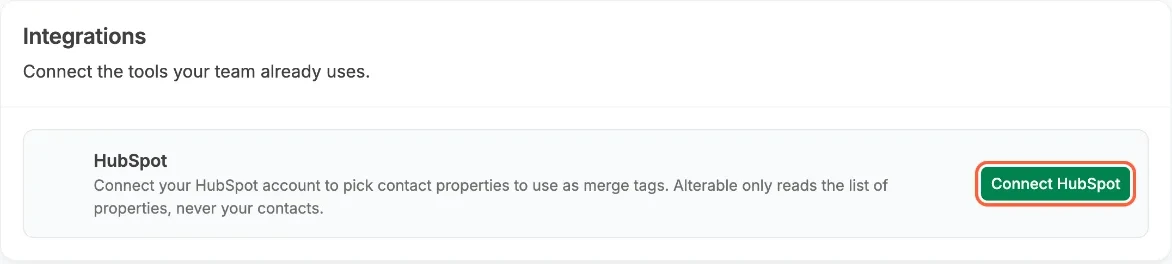 (opens the full-size screenshot)
Connect your HubSpot account
Each Alterable team connects one HubSpot account. Once it's connected, everyone on the team can import properties.
On HubSpot's Connecting Alterable to HubSpot screen, pick the HubSpot account you want to connect and click Choose Account.
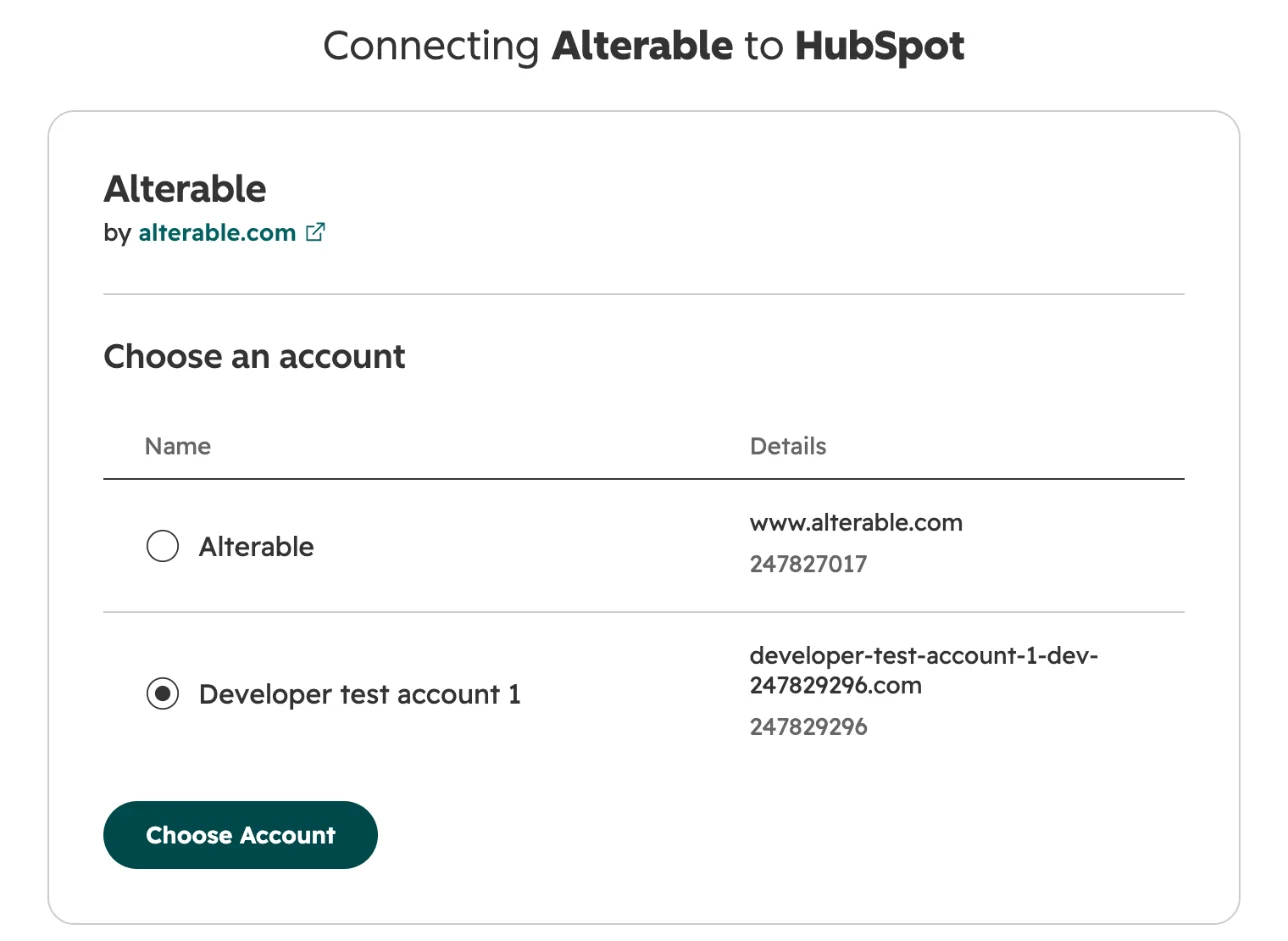 (opens the full-size screenshot)
Review the permissions. HubSpot lists two, one for each scope Alterable asks for: View details about property settings for contacts, and View properties about the installing account including primary domain and user emails. The second is HubSpot's wording for the basic
oauthscope that every HubSpot app needs in order to connect.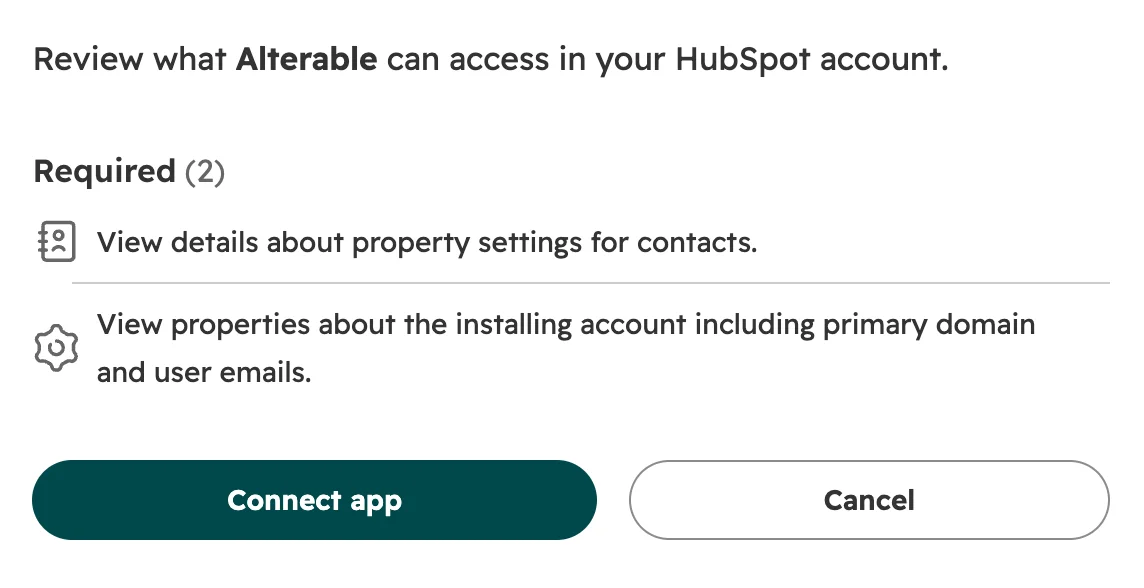 (opens the full-size screenshot)
Scopes Alterable requests Scope What Alterable uses it for crm.schemas.contacts.readReads the list of contact property definitions: name, label, type, and dropdown choices. Read-only. oauthLets you connect your HubSpot account to Alterable. Every HubSpot app needs it. That's the whole list. Alterable doesn't ask to read contacts, and doesn't ask to write anything. (If Alterable is already installed on that HubSpot account, HubSpot skips this screen and the next step, and connects straight away.)
Click Connect app.
HubSpot sends you back to your team's Integrations page in Alterable, with the message “HubSpot is connected.” The card shows which HubSpot account the team is connected to.
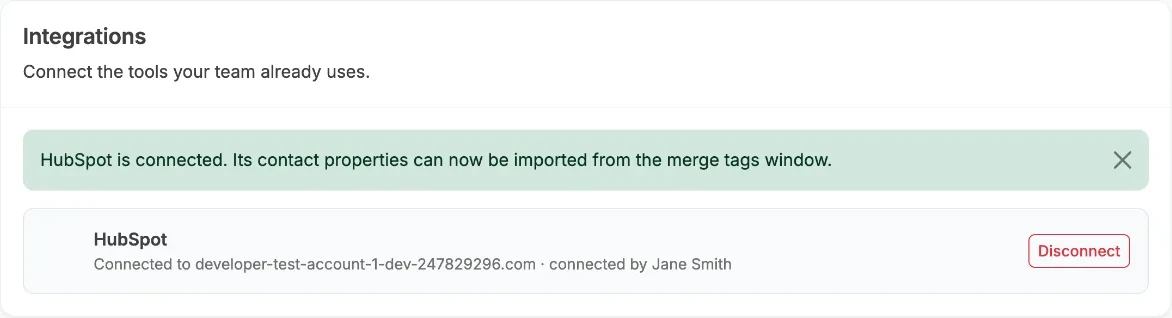 (opens the full-size screenshot)
Configure it
There's nothing to set up beyond connecting. Once HubSpot shows as connected, you can import properties.
Import properties as merge tags
In any Alterable editor, click Manage Merge Tags. In the window that opens, click the arrow next to Create Merge Tag and choose Import from HubSpot.
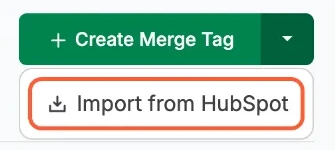 (opens the full-size screenshot)
Search for the properties you want and tick them. The checkbox at the top of the list (Select all shown) ticks everything in the current search. Then click Import selected.
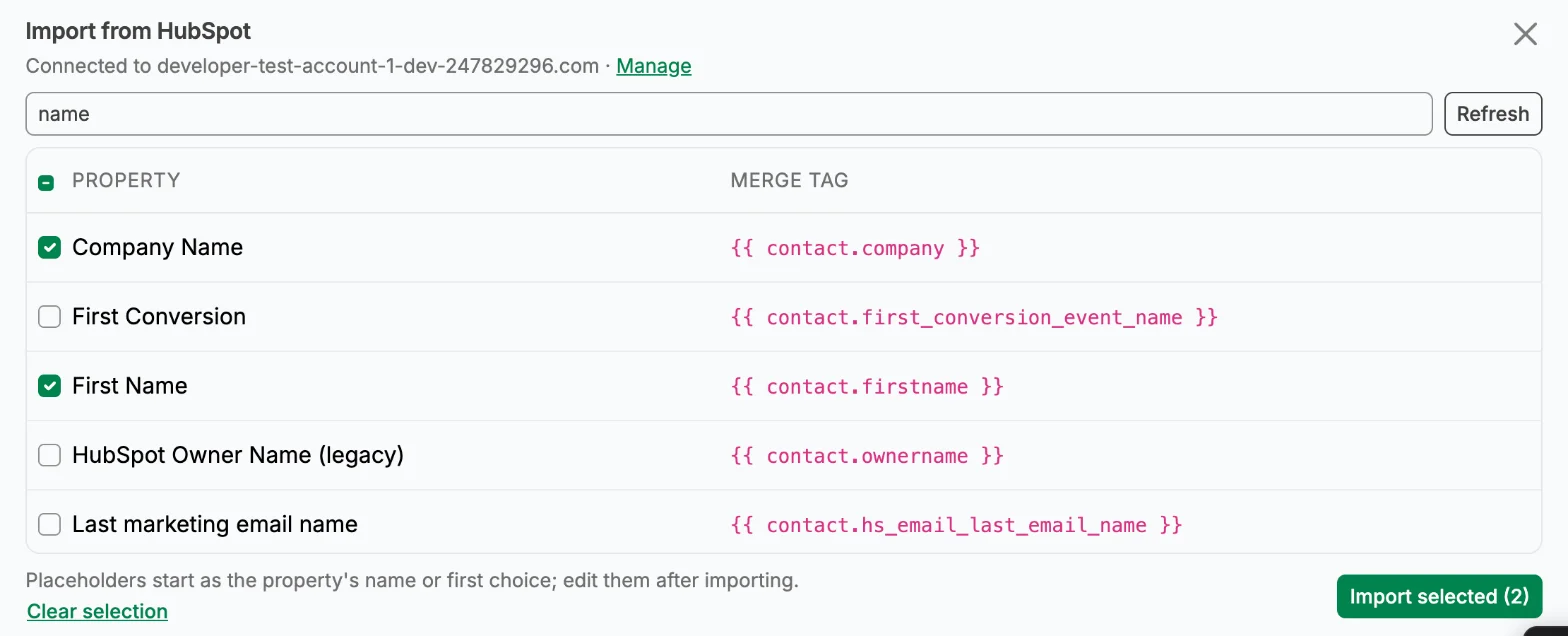 (opens the full-size screenshot)
Each property becomes a merge tag written as a HubSpot token, such as
{{ contact.company }}. Its placeholder value starts as the property's name (or, for a dropdown property, its first choice), and you can edit it after importing.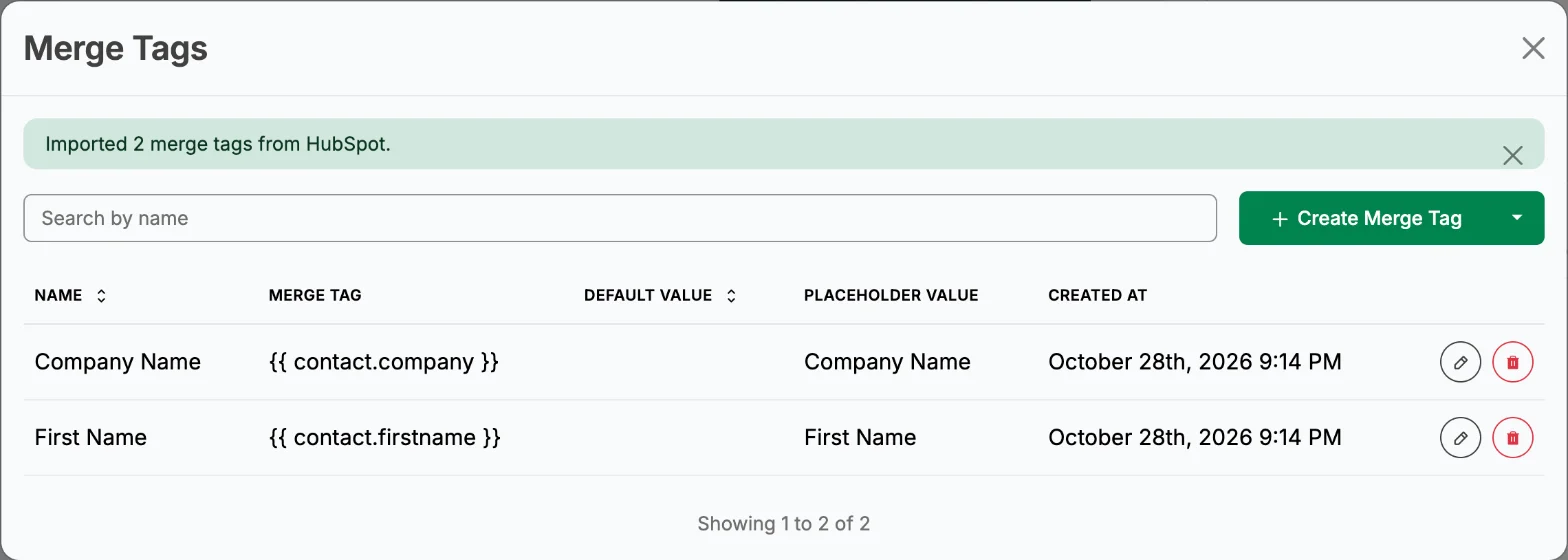 (opens the full-size screenshot)
Properties you've already imported are marked Imported, so you can't add the same one twice. Added a property in HubSpot while the window was open? Click Refresh to reload the list.
From there, use the tags like any other merge tag in your images, then send the email from HubSpot. Our guide to dynamic images in HubSpot covers where to paste the embed so HubSpot fills the tokens.
Next: build a dynamic image with your new tags.
Disconnect HubSpot
Only the team owner can disconnect.
In Alterable, go to Settings → Teams, click the gear next to your team, and open Integrations.
On the HubSpot card, click Disconnect, then confirm with Disconnect.
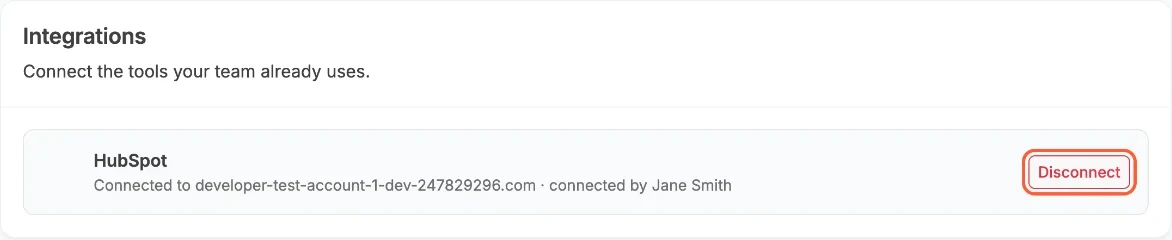 (opens the full-size screenshot)
Alterable deletes the HubSpot access it stored. Merge tags you already imported stay, and keep working in emails you send from HubSpot. To import more later, connect again.
Uninstall from HubSpot
Uninstalling happens in HubSpot. The steps are in HubSpot's Knowledge Base, under Uninstall an app. In short:
In HubSpot, click the settings icon in the top navigation bar.
In the left sidebar, go to Integrations → Connected Apps.
Next to Alterable, click Actions, then Uninstall. Type “uninstall” to confirm.
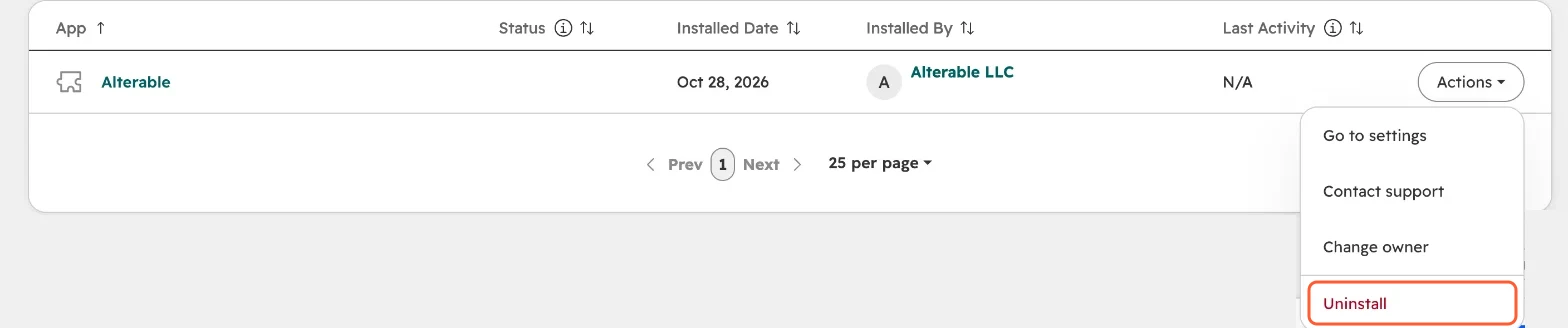 (opens the full-size screenshot)
Alterable notices the next time someone on your team opens the HubSpot import: the access no longer works, so Alterable deletes it and shows the connection as disconnected. Imported merge tags stay.
If you're done with the integration, do both: disconnect in Alterable, so Alterable deletes its stored access straight away, and uninstall in HubSpot, so the app is gone from your account too.
What happens to your data
When you connect, Alterable keeps the HubSpot account's ID and domain (to show which account is connected) and the access HubSpot grants, encrypted. While connected, it reads the list of contact property definitions (name, label, type, and dropdown choices) when someone opens the import. It never reads contacts or contact records, and it writes nothing to HubSpot.
- When you disconnect, Alterable deletes the stored connection for your team.
- When you uninstall in HubSpot, the access stops working, and Alterable deletes the stored connection the next time someone opens the import.
- Either way, imported merge tags stay in your Alterable team. They're ordinary tags holding a HubSpot token and a placeholder value, so emails that use them keep working. Delete them like any other merge tag if you no longer want them.
How Alterable handles personal data in general is in our Privacy Policy.
Troubleshooting
“The team owner can connect it”
You're a team member, and only the owner can connect HubSpot. The merge tags window names your owner: ask them to follow Install the app. Once it's connected, the import works for you too.
I connected the wrong HubSpot account
Disconnect, click Connect HubSpot again, and pick the other account on HubSpot's Choose Account screen. Merge tags you already imported stay.
“HubSpot no longer accepts this connection”
The app was uninstalled in HubSpot, or HubSpot withdrew the access. The team owner connects it again from Integrations. Imported merge tags are unaffected.
“HubSpot couldn't be connected” or “HubSpot wasn't connected”
The first means the connection failed partway: try again, and contact us if it keeps failing. The second means the connection was cancelled on HubSpot's screen, so nothing changed.
A property is missing from the list
Click Refresh to reload the list from HubSpot. Hidden and archived properties don't appear, and the import lists contact properties only.
Help and policies
Stuck on a step? Contact us, or email support@alterable.com. Using Alterable is covered by our Terms and Conditions and our Privacy Policy.