
Most guides in this series end with pasting an embed into an HTML block. Drip’s Visual Builder doesn’t have one. The elements on offer are Navigation, Image, Text, Button, Spacer, Product, Social links and Section, and that’s the list. Worth knowing before you go looking.
It matters less than it sounds. A countdown in email is an image drawn at the moment of the open, and Drip’s Image element accepts an image from a URL. Drip’s own Visual Builder article says as much: the Source setting takes “the URL to an external image you might be hosting outside of Drip.” So the route is short. Create the timer with Alterable, copy its image URL, paste it into an Image element. This guide walks that route with an Alterable countdown timer.
Step 1: Create the timer in Alterable
-
Open the Alterable countdown timer page and pick a starting point: one of the templates, or Start from scratch.
-
Choose A date. It counts down to one deadline for everyone, and its URL is a plain address, which is what the Visual Builder’s Source field wants (more on the other types below).
-
Set the deadline and its time zone, then match the fonts and colours to your template. Drip caps email width at 600px, so there is no point designing the timer wider than that.
-
Click Create.
<a href="https://next.alterable.com/countdown-timers/click/YOUR-TIMER-ID"> <img src="https://next.alterable.com/countdown-timers/YOUR-TIMER-ID.png" /> </a> -
Leave Email platform on None (a plain image, no merge tags), then take two pieces of the embed, separately. Click Copy image URL for the image address, the one ending in
.png. The link URL is thehrefvalue on the<a>tag: select it between its quote marks, without the quotes.
Step 2: Add the countdown timer to your Drip email
-
Open the email in Drip’s Visual Builder.
-
Click the Image element in the left panel. Drip switches to a placement mode and marks every spot in the email that can take the image with a plus icon. Click the one where the timer should sit, ideally just above the call to action.
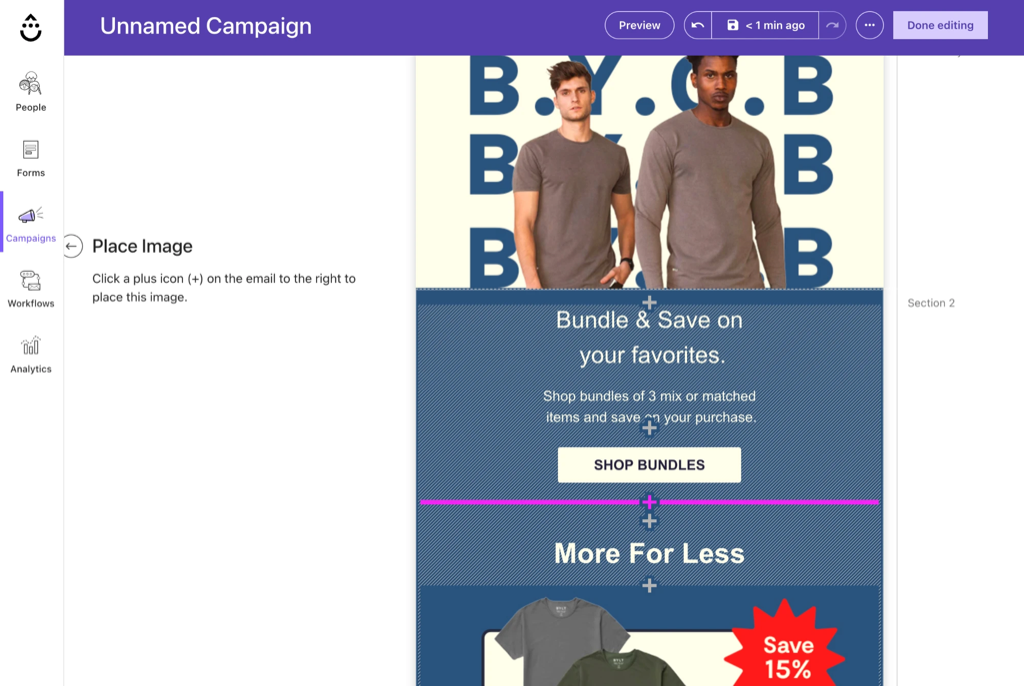
-
Drip drops in a placeholder picture and opens the Image settings. Under Source, skip Choose Image and click into the field next to it, the one reading Or Enter a URL.
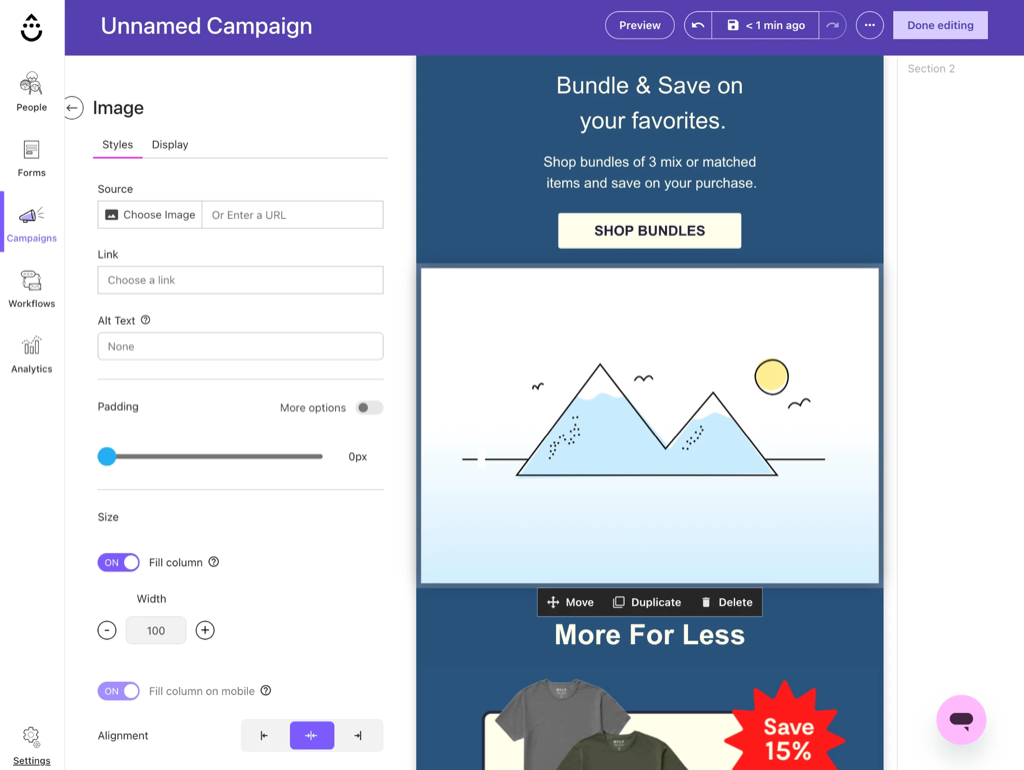
-
Paste the Alterable image URL. The placeholder is replaced by the timer, already counting.
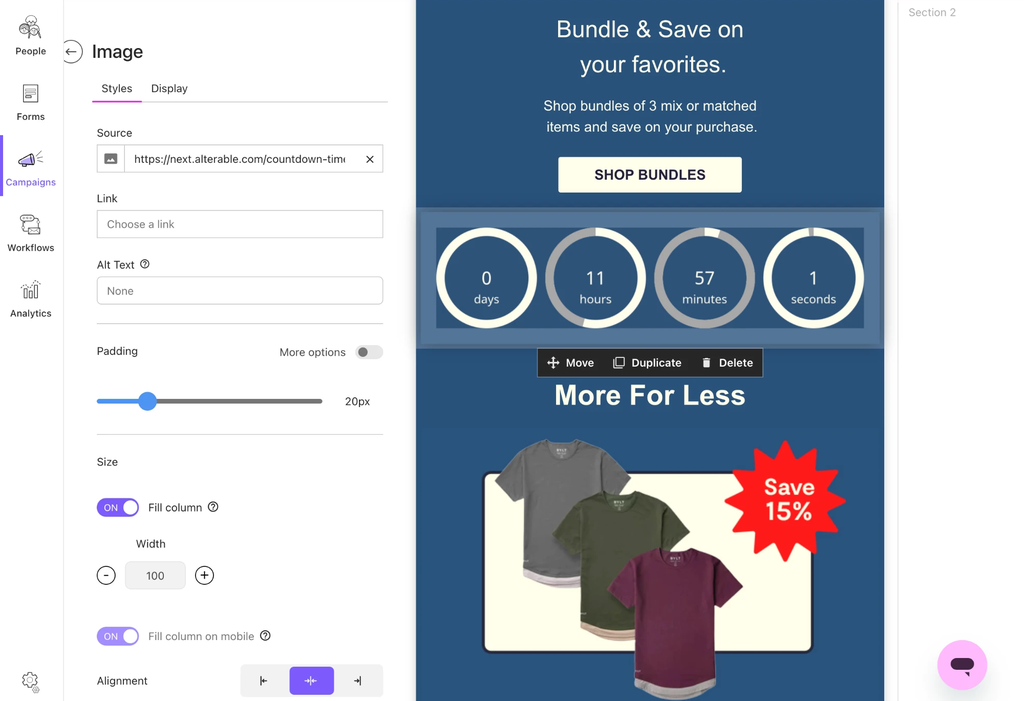
-
Paste the Alterable link URL into the Link field, so a click on the timer goes where the embed would have sent it. If you’d rather send clicks straight to your sale page, put that address there instead. The timer works either way.
-
Fill in Alt Text with the deadline in words, something like “Sale ends Friday at midnight.” It’s what a reader with images off will see in place of the timer.
-
Leave Fill column on unless the timer looks oversized, and add Padding if it sits too tight against the blocks around it. The screenshots here use 20px.
-
Click Preview to check it.
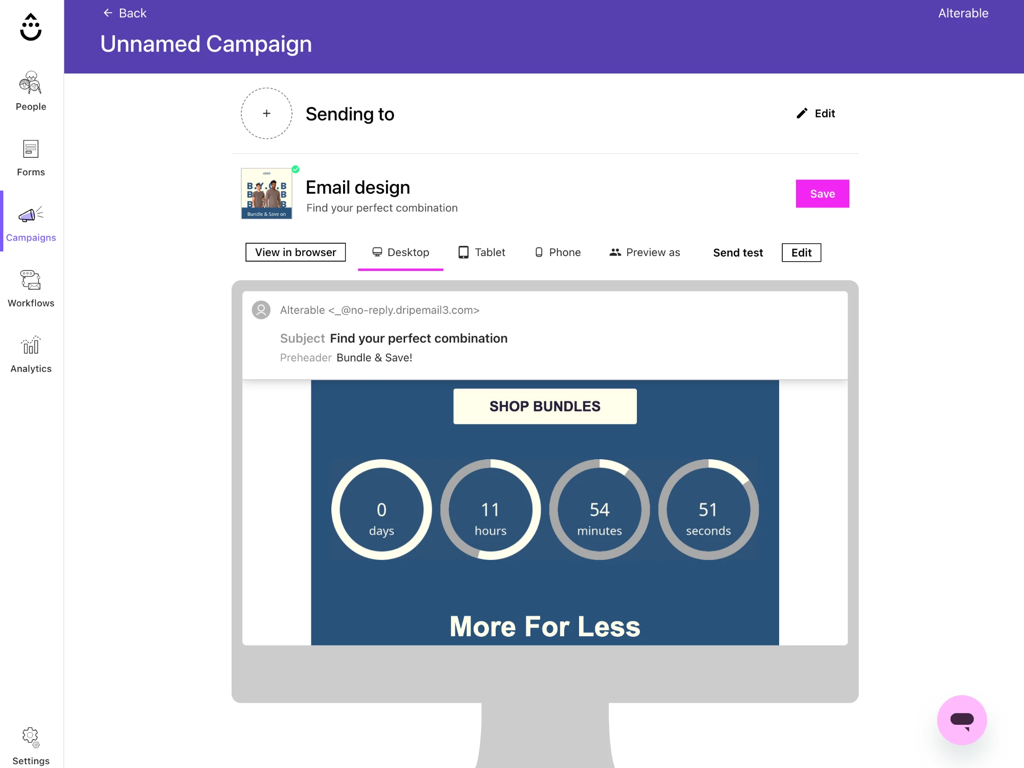
That’s the whole integration. The image is fetched from Alterable on every open, so the countdown shows the real time remaining whether the email is read the minute it lands or three days later.
Evergreen and per-subscriber timers in Drip
Alterable’s evergreen and query parameter timers work by putting a subscriber-specific value into the image URL: an identifier so each person keeps their own clock, or a deadline read from a custom field. In Drip that value comes from Liquid.
It isn’t confirmed that the Visual Builder’s Source field renders Liquid rather than sending the braces through as typed, so don’t count on it. The dependable route is Drip’s HTML Builder, which you pick on the “Which email builder would you like to use?” screen when you create the email. There the whole embed goes in as written, and the image tag is yours to edit.
An evergreen timer starts each subscriber’s window when Drip sends them the email, and keeps it across opens. The image URL carries two Liquid values for that: {{ now | timestamp }}, the send time, and {{ subscriber.id }}, Drip’s subscriber ID, which tells subscribers apart:
<img src="https://next.alterable.com/countdown-timers/YOUR-TIMER-ID.png?d={{ now | timestamp }}&uid={{ subscriber.id }}" />Choosing Drip under Email platform in Alterable’s embed dialog adds both for you.
A query parameter timer takes the deadline itself, as an ISO date such as 2026-10-01T18:00:00Z, from a custom field you keep on the subscriber:
<img src="https://next.alterable.com/countdown-timers/YOUR-TIMER-ID.png?date={{ subscriber.offer_end }}" />date is the timer’s Parameter name in Alterable, which is the default. If you rename it, use your name in place of date. You don’t have to write the parameter by hand, either: for a timer like this the embed dialog has an End date box, and pasting the field’s merge tag there puts it in the code for you.
Spell the custom field identifier exactly as Drip has it. A near-miss does not error, it arrives empty, and an empty deadline is a timer that never draws.
If your emails live in the Visual Builder and you don’t want to move them, a standard timer counting to one shared deadline is the honest recommendation. For a sale, a launch or a cart-closing date, that is the right timer anyway.
Testing a Drip countdown timer
A standard timer carries nothing subscriber-specific, so a normal Send test shows it correctly. Open the test on your phone as well as your desktop. Fill column decides how large the digits render on a small screen, and it is worth seeing for yourself.
If you went the HTML Builder route with Liquid in the URL, Drip only renders Liquid in a test once you’ve picked a person under Preview as. Skip that and the test arrives with an empty value. The timer still draws, it just can’t tell who is reading: a standard timer looks exactly right, an evergreen one starts its full window at that open, and a merge-tag deadline left blank reads as already over.
After the deadline, the timer holds at zero, or shows the text or image you chose as its expiry placeholder in Alterable. That lives on the timer, not the email, so every copy already delivered shows it on the next open.
Check it in a real inbox
Send a test to your own address and open it. With no merge tags in the URL, a plain test shows the real thing. The timer should show the time left to your deadline, and a later open should show less. If the image is missing, check that the image field holds the full image URL from the embed, ending in .png, and nothing else.
Your weekend deal ends soon
Weekend deal ends in
Example: 2 days, 14 hours and 36 minutes left.