If you’ve ever wanted to add a countdown timer to your email campaigns, you’re in the right place. Email countdown timers are one of the highest-impact tactics in email marketing; they create urgency, drive immediate action, and have been shown to increase click-through rates by up to 231% and conversion rates by as much as 200%.
In this guide, you’ll learn exactly how email countdown timers work, how to add one in just a few minutes, and how to customize it to match your brand.
What Is an Email Countdown Timer?
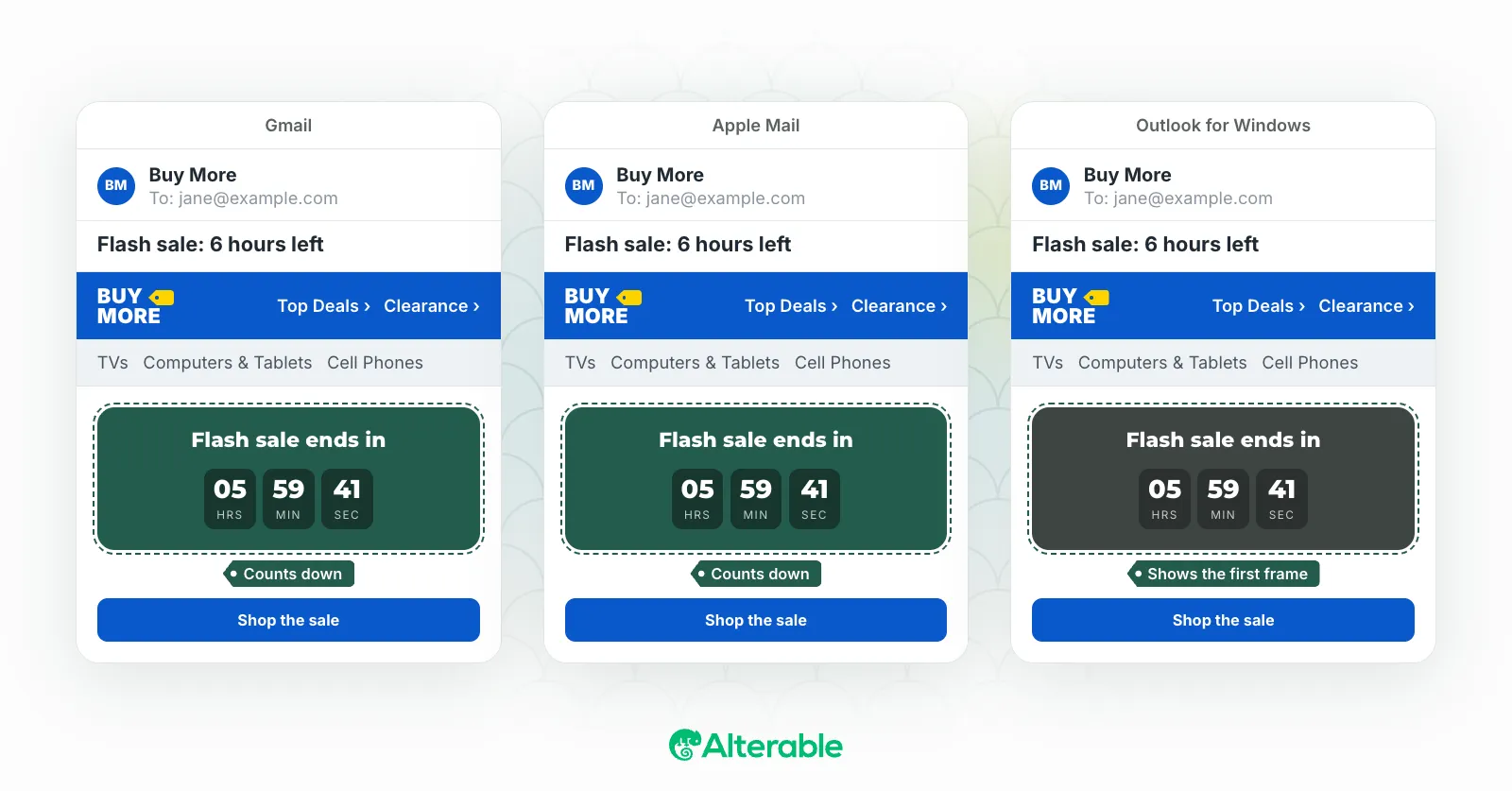
An email countdown timer is an animated image embedded inside an email that displays a live, ticking countdown to a deadline (a sale ending, an event starting, or an offer expiring). Unlike a static banner, it changes every time the recipient opens the email, showing the exact time remaining at that moment.
The technology behind it is straightforward: the timer is generated as an animated GIF served from a remote server. Each time the email is opened, the server renders a fresh frame sequence showing the current remaining time. The result is a seamless countdown that feels live, even inside a static email.
Why Add a Countdown Timer to Your Emails?
The psychology is simple: scarcity and urgency are among the most powerful motivators in marketing. When subscribers can see a deadline ticking away in real time, they’re far more likely to act now rather than “come back later” (which usually means never).
Beyond the psychology, the numbers back it up. According to campaign data, emails featuring countdown timers achieve an average uplift of 30% in click-through rates, with top-performing campaigns seeing CTR increases of over 200%. For e-commerce businesses, flash sales and limited-time offers with visible countdowns consistently outperform those without.
Common use cases include:
- Flash sales and limited-time discounts
- Cart abandonment emails with expiring offers
- Event registrations and webinar reminders
- Early bird pricing deadlines
- Subscription renewal notices
- Seasonal promotions (Black Friday, end-of-season sales)
- Product launch countdowns
How to Add a Countdown Timer to Your Email (Step-by-Step)
The easiest way to add a countdown timer to an email is with a dedicated service like Alterable. You don’t need to write any code: just configure your timer, copy a single line of HTML, and paste it into your email.
Step 1: Choose Your Timer Type
Before you build your timer, decide which type fits your campaign:
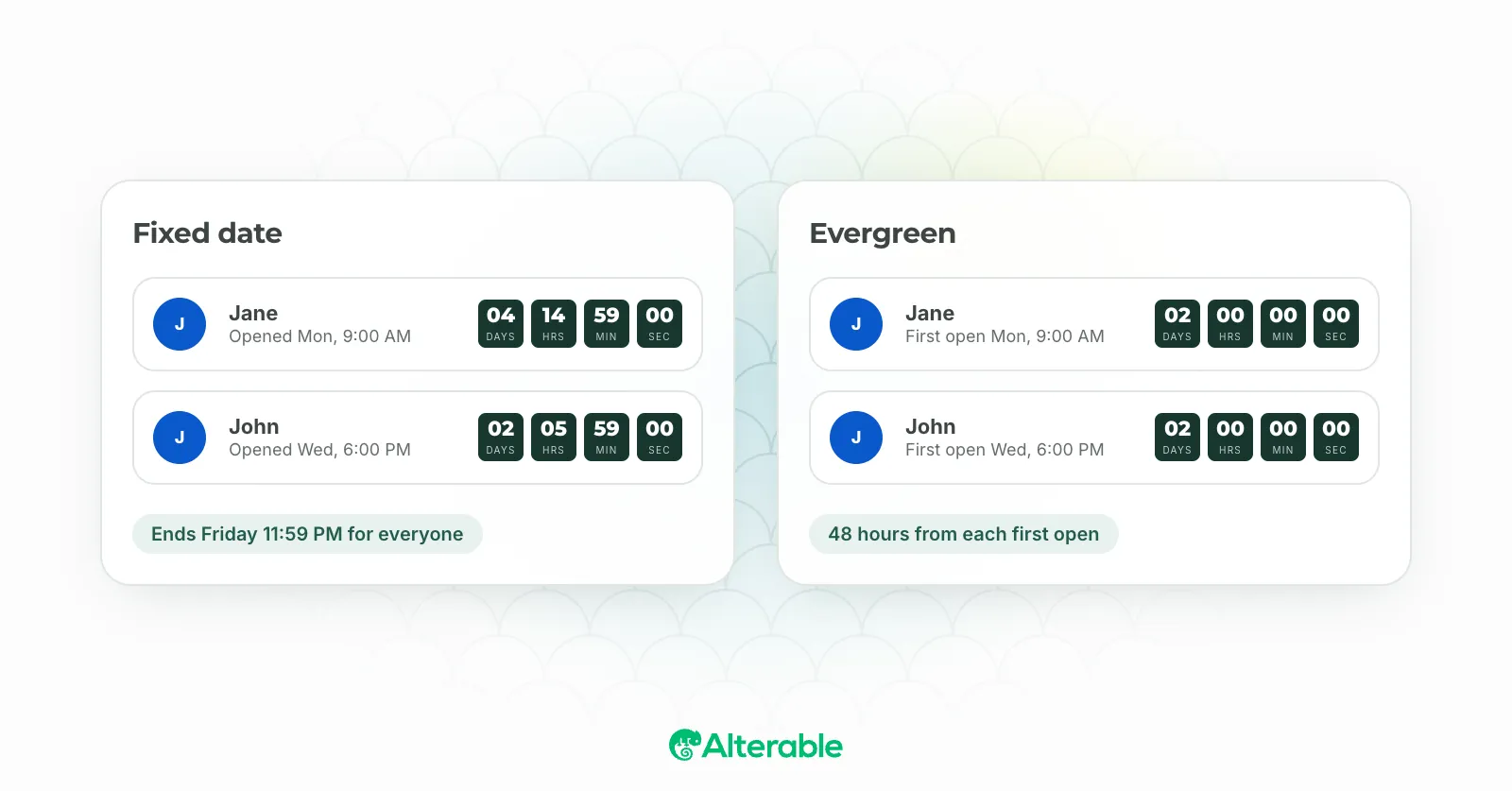
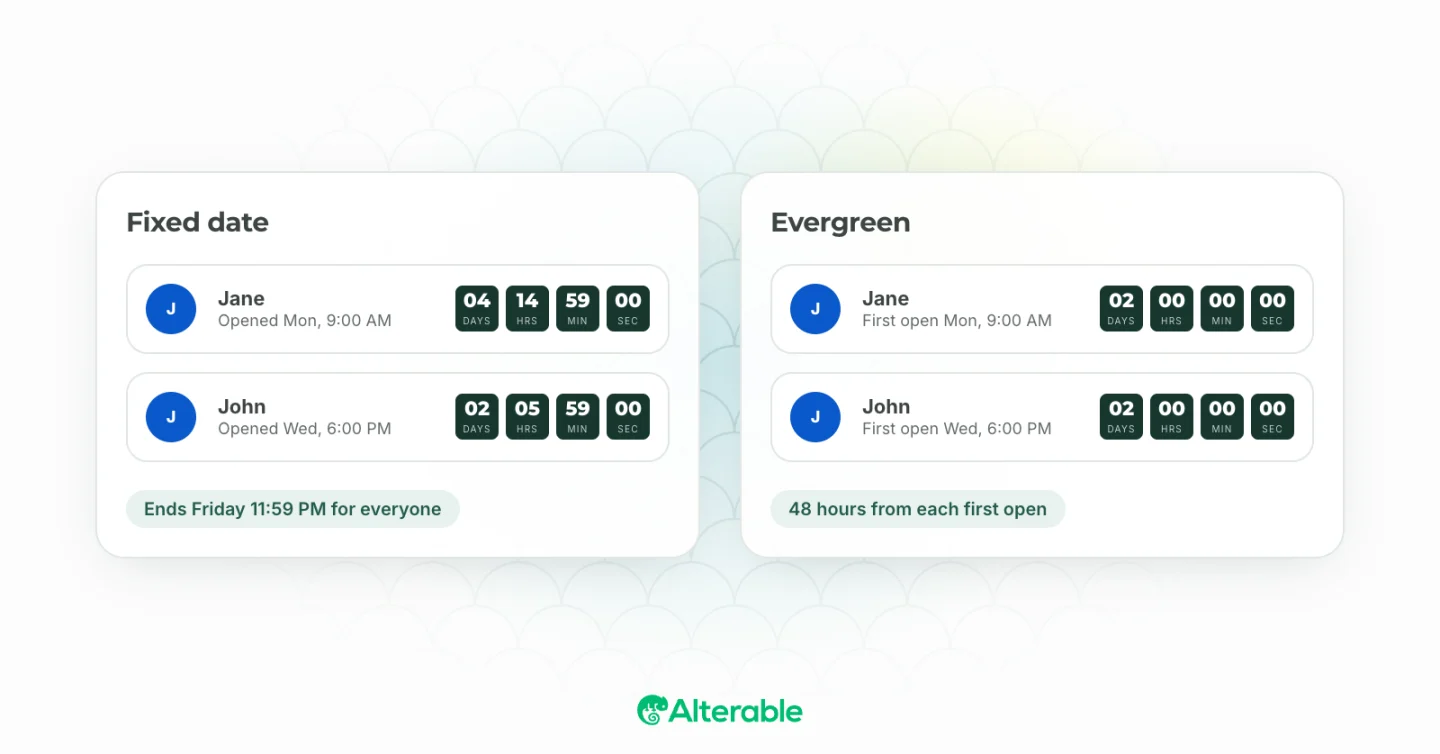
- Fixed date timer: Counts down to a specific date and time. Everyone who opens the email sees the same deadline. This is best for sales that have a hard end date.
- Evergreen timer: Counts down from the moment each subscriber opens the email. Perfect for automated sequences where urgency should feel personal rather than universal.
Step 2: Create Your Timer in Alterable
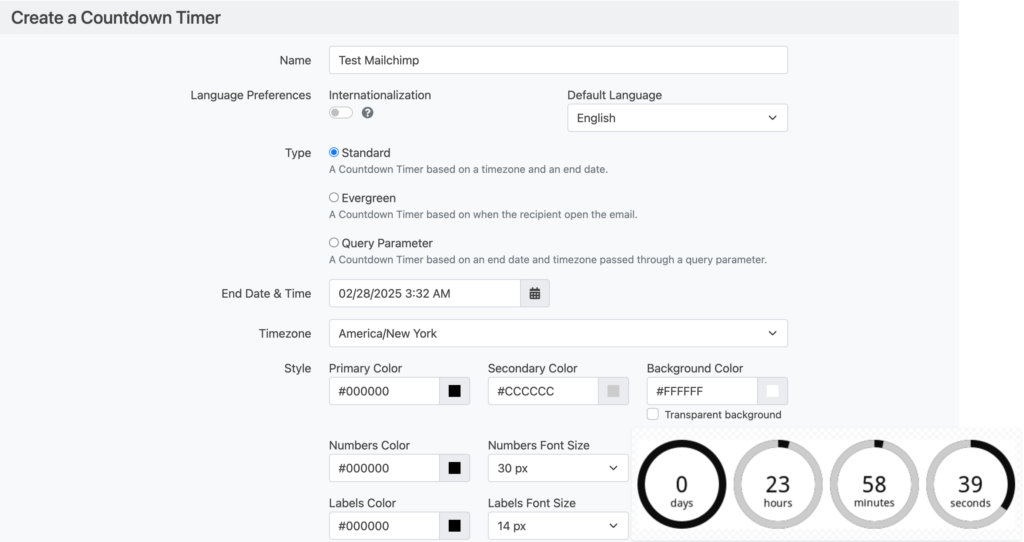
Sign up for a free account at Alterable and navigate to the countdown timer builder. Set your expiration date and time (and time zone), then choose your timer type.
If you’d rather see the timer before you make an account, start in the free countdown timer generator: pick the deadline, colors and font, watch the preview count down, and activate the finished design on a free account to get its embed code.
Step 3: Customize the Design
This is where you make the timer feel like part of your email rather than an afterthought. Most services let you customize:
- Colors: Set background color, digit color, and label color to match your brand palette.
- Font: Choose a typeface that fits your email’s style.
- Size: Set the timer width to fit neatly within your email template.
- Expired state: Decide what happens after the deadline; typically, the timer freezes at zero or displays a custom expired image.
Alterable’s live preview lets you see exactly what the timer will look like before you copy the code.
Step 4: Copy the Embed Code
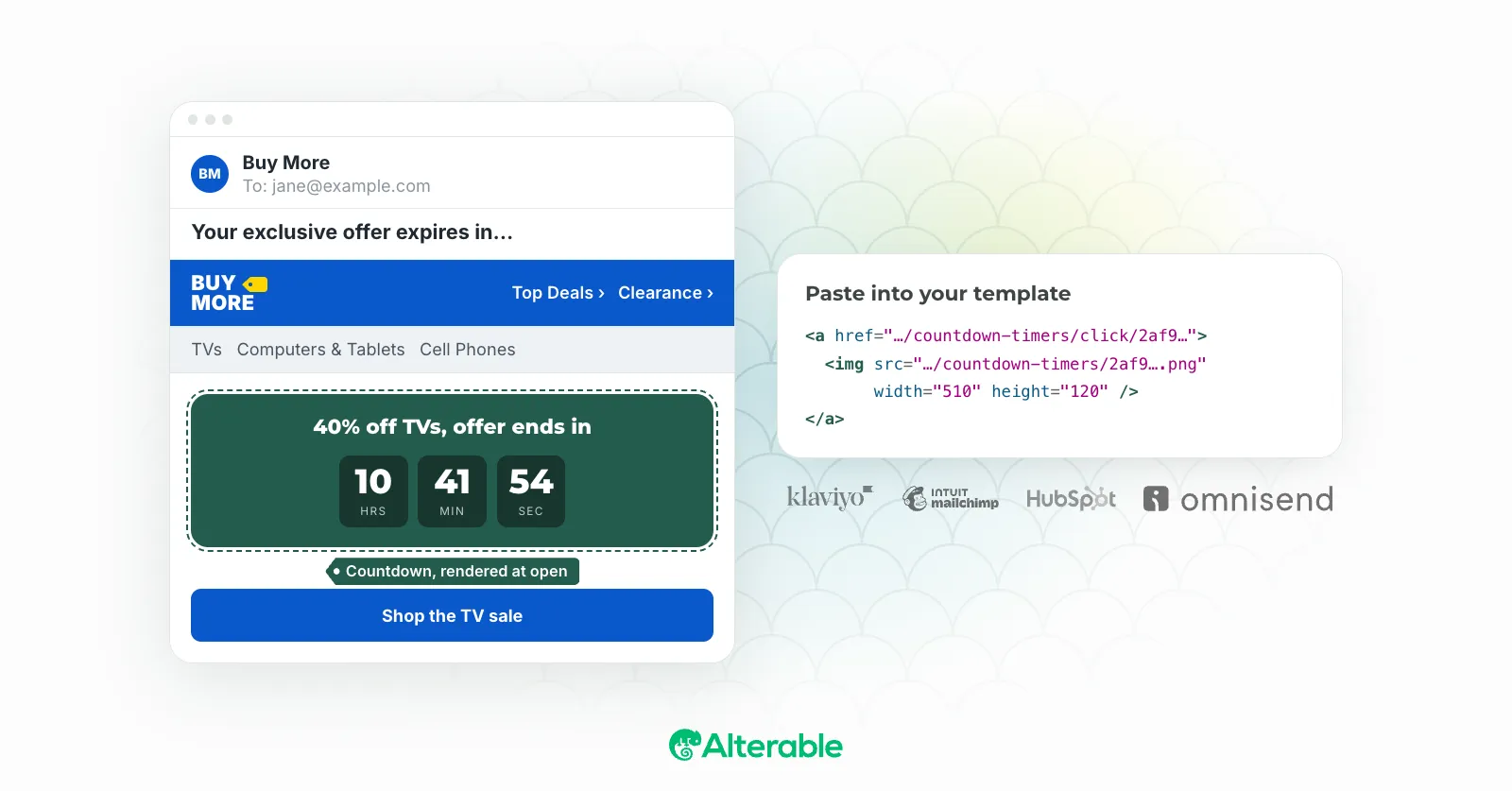
Once you’re pleased with the design, copy the generated <img> tag. It looks something like this:
<a href="https://next.alterable.com/countdown-timers/click/2af9a2de-c3db-46ff-9188-c5cbc4d38204">
    <img src="https://next.alterable.com/countdown-timers/2af9a2de-c3db-46ff-9188-c5cbc4d38204.png" width="510" height="120" />
</a>
Step 5: Paste It Into Your Email
Open your email editor and switch to the HTML/code view. Place the <img> tag wherever you want the timer to appear, typically below the headline or just above the main CTA button. Save, preview, and send.
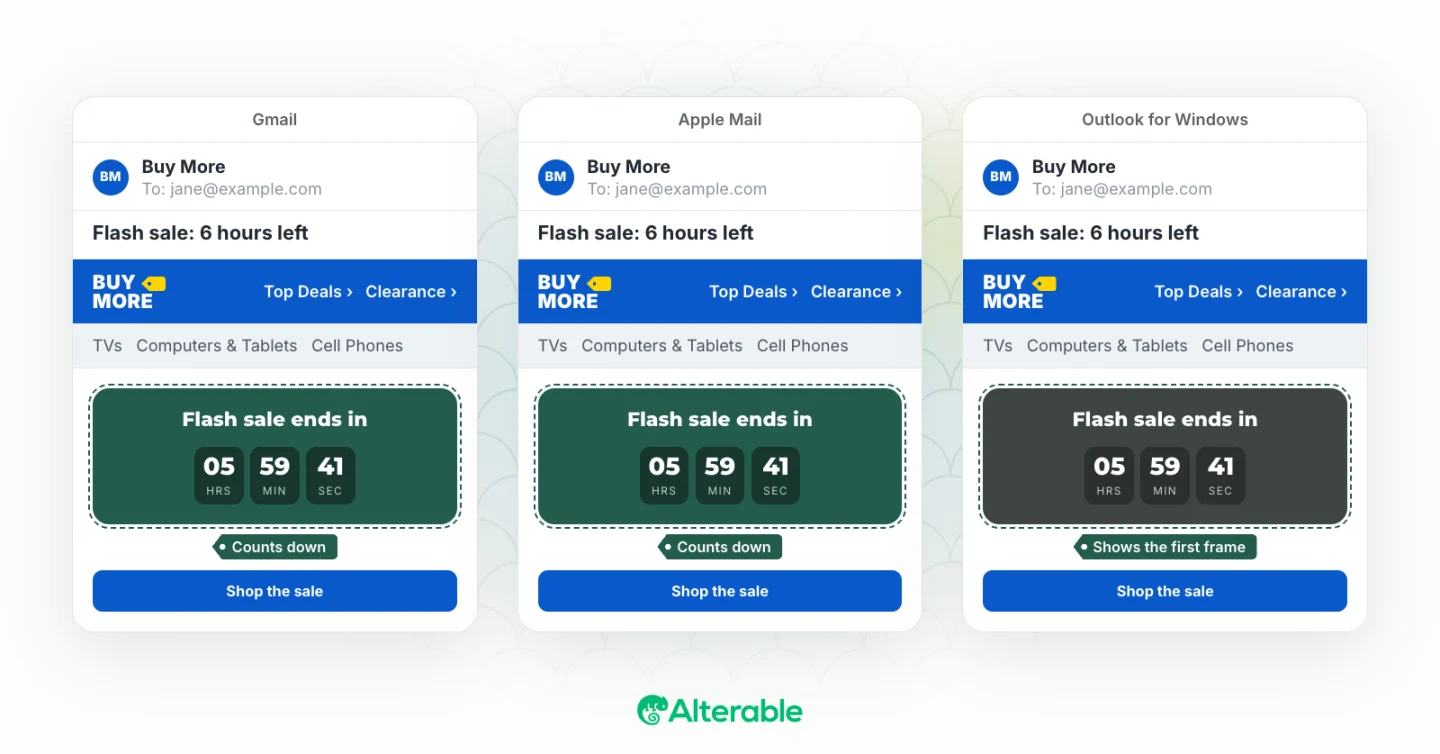
Most major email platforms support this approach, including Mailchimp, Klaviyo, HubSpot, Constant Contact, Brevo, and Omnisend (click the link corresponding to your ESP for a dedicated tutorial).
Customizing Your Email Countdown Timer’s Colors and Styles
A countdown timer that clashes with your email design will undermine trust rather than build urgency. Here are a few best practices for customization:
- Match your brand colors: Use your primary brand color for the background or digit color so the timer feels integrated.
- Use high contrast: Digits must be easy to read at a glance. Dark text on a light background (or vice versa) works best.
- Keep it proportionate: The timer should be prominent but not dominate the email. A width of 400–550px is typically ideal for standard email templates.
- Test on mobile: Email countdown timer animated GIFs are responsive to the container they’re placed in, but always preview on a mobile device to make sure digits are legible.
What Happens When the Timer Expires?
When the deadline passes, the timer doesn’t disappear; it stays in the email as a static image showing zero (or a custom expired message). This is important to configure thoughtfully: if you show a timer expiring at midnight but subscribers open the email at 9am the next day, you want them to see a clear “this offer has ended” message rather than a frozen counter.
Alterable lets you set a custom expired image or redirect expired clicks to a different URL, giving you full control over the post-deadline experience.
Tips for Getting the Most from Your Email Countdown Timer
- Place it above the fold: Put the timer high in the email so subscribers see it immediately on open, before they scroll.
- Pair it with a clear CTA: The timer creates urgency; your call-to-action button captures it. Place them close together.
- Use it for real deadlines: Subscribers will remember if your “limited-time” offer magically resets. Use timers for genuine deadlines to maintain trust.
- Test with and without: Run A/B tests to measure the exact lift the timer gives your specific audience.
Start Adding Countdown Timers to Your Emails Today
Adding a countdown timer to your email is one of the fastest ways to boost engagement without redesigning your entire campaign. With a tool like Alterable, a fully branded countdown is a design, a copied image tag and a paste into your ESP, and it renders live at every open of your next email.
Whether you’re running a flash sale, a product launch, or an automated nurture sequence, a well-placed countdown timer gives subscribers the nudge they need to act right now.