
Mailchimp has never shipped a countdown block. Open the new builder and the list is Text, Image, Video, Product, Button, Social, Survey, Apps, Code and a few structural pieces. The classic builder is the same story. Even the Apps block, which pulls in AddEvent, Yotpo, Judge.me and friends, has nothing that counts down. Mailchimp’s own article on countdown timers sends you to third-party tools, and that’s fair: a countdown in email has to be an image redrawn at the moment of opening, and that’s not something an ESP builds in-house.
So a Mailchimp countdown timer is a two-step job. You create the timer somewhere that renders it live, then paste the embed into a Code block. This guide does exactly that with an Alterable countdown timer, and spends most of its time on the two things people actually get stuck on: which merge tags to pass so the deadline is personal, and why the test send looks wrong when you do.
Step 1: Create the timer in Alterable
-
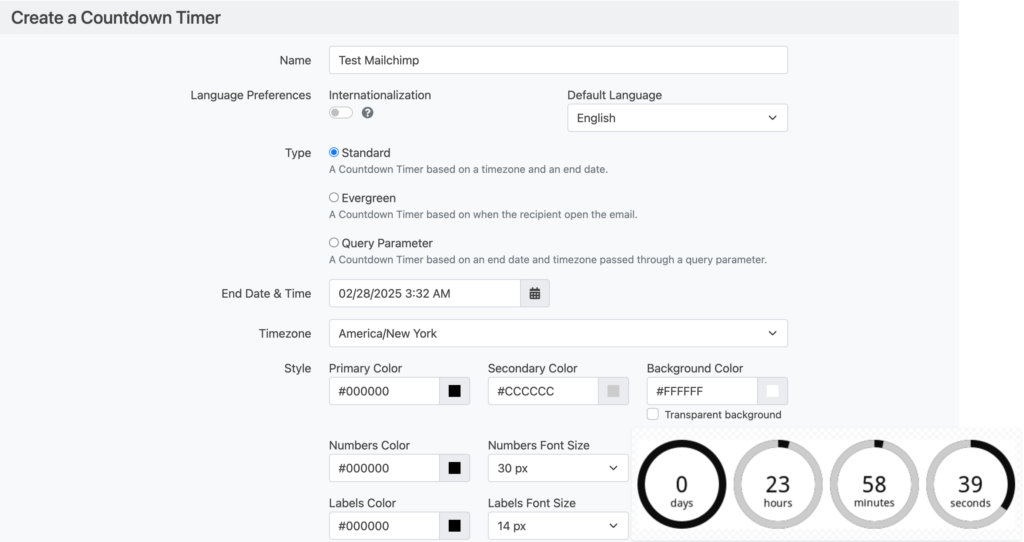
Go to the Alterable countdown timer page and pick a starting point: one of the templates, or Start from scratch.
-
Under Counts down to, pick a type. A date is one deadline for everyone. Time after opening gives each subscriber their own window, starting when the email is sent. A date in the link takes the deadline from a parameter in the image URL, which is the one you want when the date lives in Mailchimp. The difference between fixed and evergreen timers is worth two minutes if you’ve not used both.
-
Set the deadline and its timezone, then style the digits, labels and colours to match your template.
-
Click Create and copy the HTML. It’s a link wrapped around an image, nothing more. Before you copy it, choose Mailchimp under Email platform, and Alterable writes Mailchimp’s merge tags into it for you.
<a href="https://next.alterable.com/countdown-timers/click/YOUR-TIMER-ID">
    <img src="https://next.alterable.com/countdown-timers/YOUR-TIMER-ID.png?uid=*|UNIQID|*" />
</a>
Step 2: Add the countdown timer to your Mailchimp email
In the new builder, drag a Code block from the side panel to where the timer should sit, then paste the embed into the Code menu. In the classic builder, drag in the Code block, paste, and click Save & Close. Mailchimp’s Code block documentation lists what survives: images, links and tables are all supported, so the embed comes through untouched. JavaScript would be stripped, but a timer doesn’t use any.
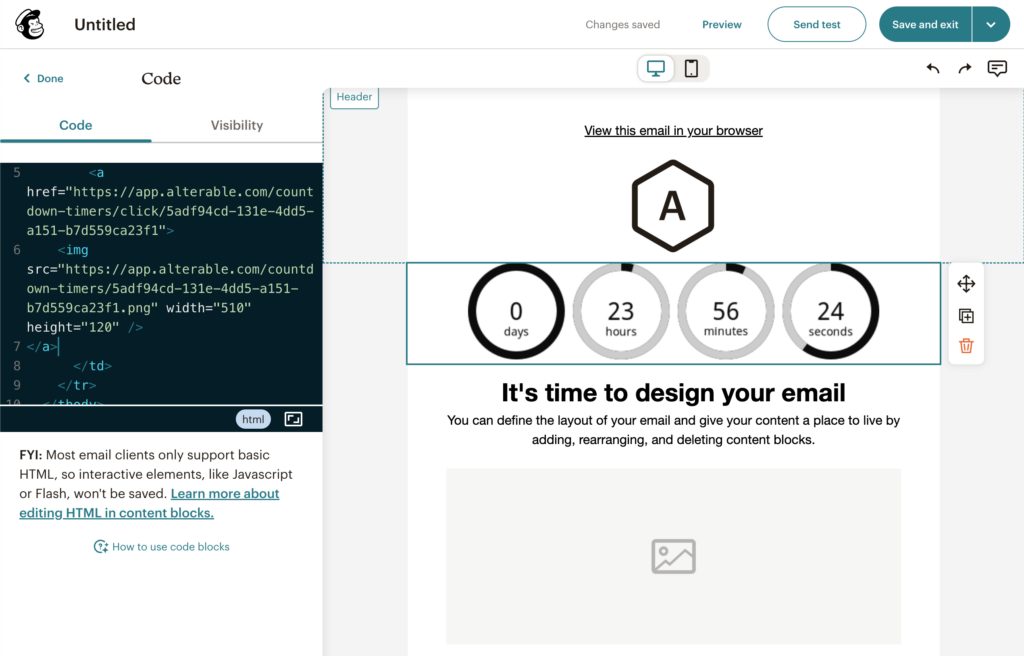
Customer Journeys use the same builders, so the Code block works in automated emails exactly as it does in a campaign.
Per-subscriber deadlines with Mailchimp merge tags
A standard timer needs nothing from Mailchimp. The other two types take a merge tag on the image URL.
Evergreen timers start each subscriber’s window when Mailchimp sends them the email, and keep it running across opens. The image URL carries two Mailchimp tags for that: *|DATE:U|*, the send time, and *|UNIQID|*, which tells subscribers apart:
<img src="https://next.alterable.com/countdown-timers/YOUR-TIMER-ID.png?d=*|DATE:U|*&uid=*|UNIQID|*" />Choosing Mailchimp under Email platform in Alterable’s embed dialog adds both for you.
A date in the link timers take the deadline itself. Here Mailchimp has a quirk worth knowing: audience date fields store a date with no time, and there’s no filter to reformat a contact field (*|DATE:...|* formats the send date, not a field). The clean route is a plain text field, say OFFEREND, holding the deadline as an ISO date such as 2026-10-01T18:00:00Z, filled by whatever system knows the real expiry:
<img src="https://next.alterable.com/countdown-timers/YOUR-TIMER-ID.png?date=*|OFFEREND|*" />date is the timer’s Parameter name in Alterable, which is the default. If you rename it, use your name in place of date. You don’t have to write the parameter by hand, either: for a timer like this the embed dialog has an End date box, and pasting the field’s merge tag there puts it in the code for you.
Every subscriber then gets a countdown to their own date, drawn fresh on every open.
Testing a Mailchimp countdown timer
This is where the support tickets come from. Mailchimp’s test sends do not fill in contact-specific merge tags, so a URL containing *|UNIQID|* arrives with the tag still in it and the image fails. Nothing is broken. Use Preview mode with Enable live merge tag info switched on, or send the real campaign to a segment containing only your own addresses. A standard timer has no tags in it and shows correctly in an ordinary test send.
When the deadline passes, the timer stops at zero and stays there. If you’d rather it showed a message or a different image once the offer has closed, set that on the timer in Alterable, and it takes effect for everyone who opens late without touching the campaign.
Check it in a real inbox
Send a real test to your own address and open it. The timer should show the time left to your deadline, and a later open should show less. If the image comes through broken, check that every merge tag in its URL was filled in for that send.
Your weekend deal ends soon
Weekend deal ends in
Example: 2 days, 14 hours and 36 minutes left.