
Most guides in this series end up in an HTML block. Constant Contact doesn’t, and it’s worth saying up front so you don’t go hunting for one. The current email editor has no block that accepts pasted HTML.
It matters less than it sounds. A countdown in email is an image drawn at open time, and Constant Contact’s Image block will happily show an image from a URL. So the route is: create the timer with Alterable, paste its image URL into an Image block, and add the click-through link to the block. This guide walks that route with an Alterable countdown timer, then is honest about the one thing the route can’t do.
Step 1: Create the timer in Alterable
-
Open the Alterable countdown timer page and pick a starting point: one of the templates, or Start from scratch.
-
Choose A date. The Image block’s URL field takes a plain address, so this is the type to use in Constant Contact (more on that below).
-
Set the deadline and its timezone, then match the fonts and colours to your template.
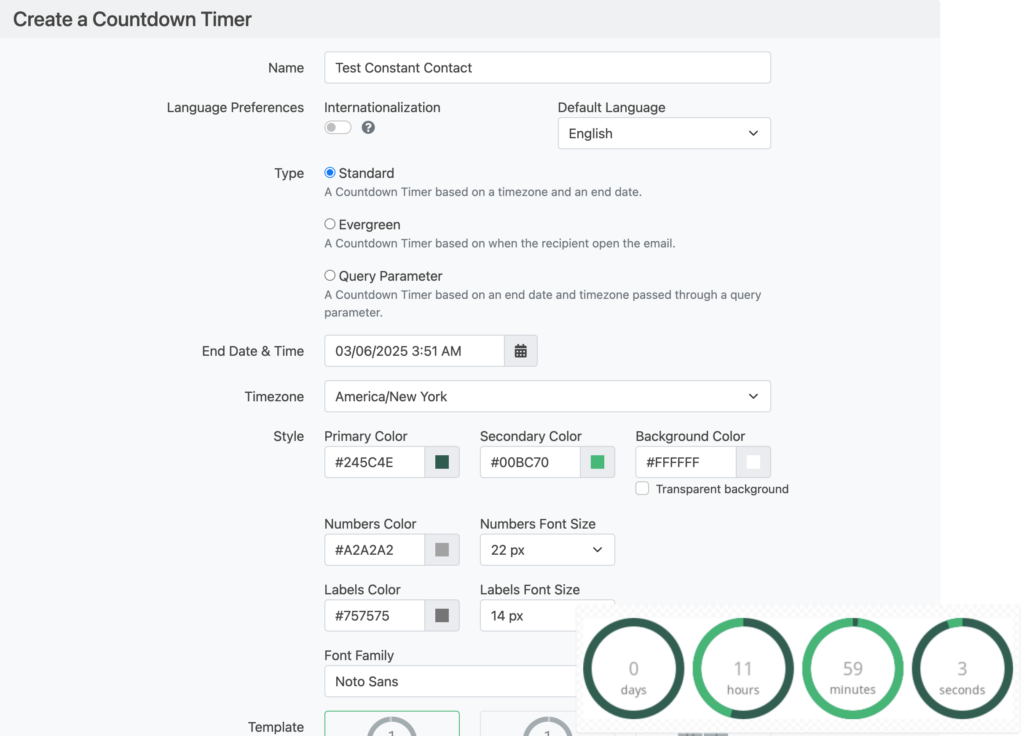
-
Click Create. Leave Email platform on None (a plain image, no merge tags): the Image block’s URL field takes a plain address.
<a href="https://next.alterable.com/countdown-timers/click/YOUR-TIMER-ID"> <img src="https://next.alterable.com/countdown-timers/YOUR-TIMER-ID.png" /> </a> -
You need two pieces of the embed, separately. Click Copy image URL for the image address, the one ending in
.png. The link URL is thehrefvalue on the<a>tag: select it between its quote marks, without the quotes.
Step 2: Add the countdown timer to your Constant Contact email
-
Open the email in Constant Contact’s editor.
-
Drag an Image block into the layout where the timer should sit.
-
Click Replace, then choose the option to add an image by URL.
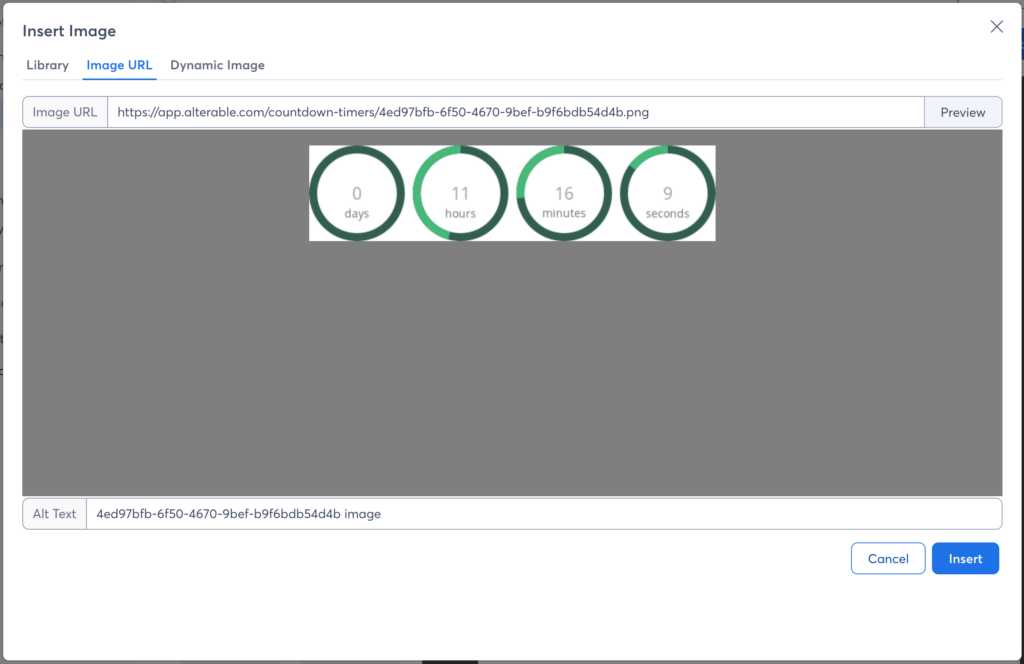
-
Paste the Alterable image URL into the field, click Preview to check it, then Insert.
-
On the Image block, click the link icon and paste the Alterable link URL into the Link URL field, then Insert.
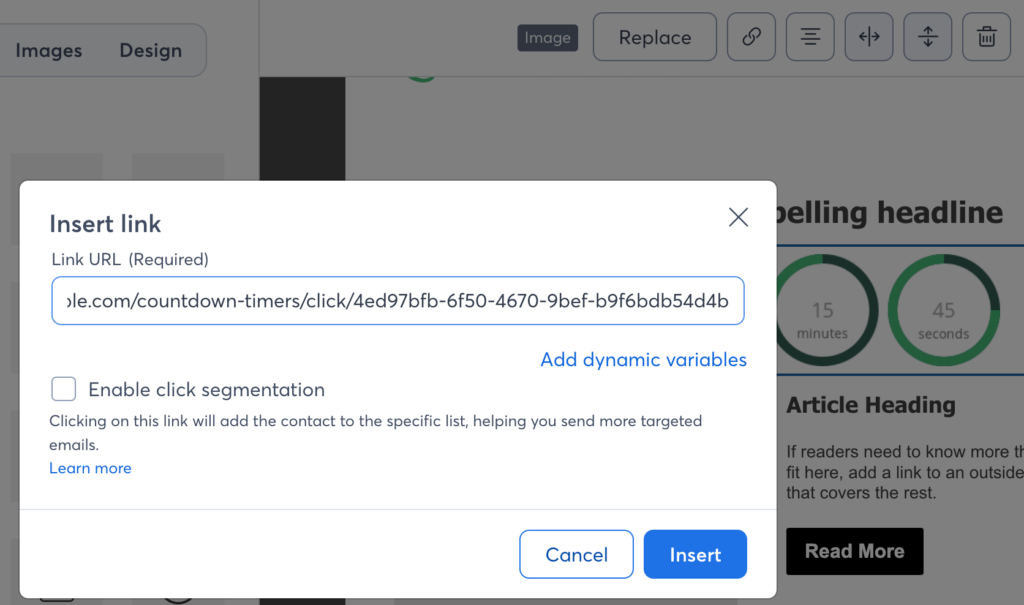
-
Size and position the block, ideally just above the call to action, then save and preview.
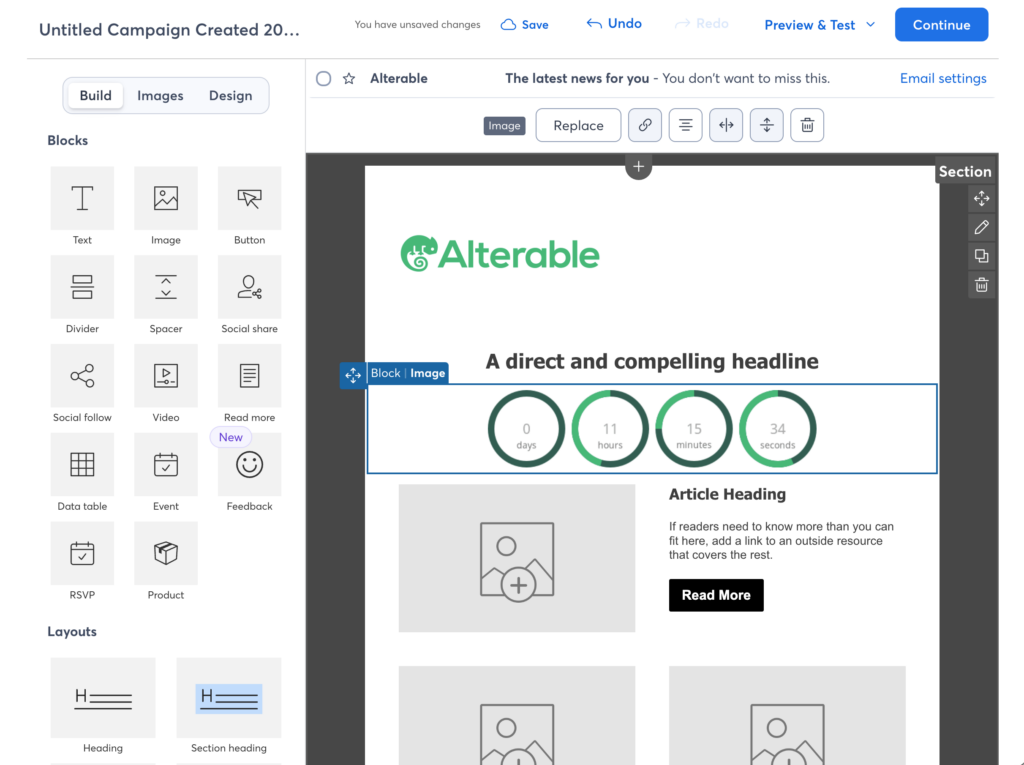
That’s the whole integration. The image is fetched from Alterable on every open, so the countdown shows the real time remaining whether the email is read the minute it lands or three days later.
What the Image block route can’t do
Alterable’s evergreen and query parameter timers work by adding a contact-specific value to the image URL: an identifier so each person keeps their own clock, or a deadline pulled from a field. That needs a merge field inside the URL, and the Image block’s URL field is built for a plain address. There’s no reliable way to get a personalization field into it, so in Constant Contact’s editor the honest advice is a standard timer counting to one shared deadline. For a sale, a launch or an event, that’s exactly right anyway.
If you send coded HTML emails through Constant Contact by another route, choose Constant Contact under Email platform instead: the embed then carries [[EmailAddress]], and the full code works there as it does on any platform.
Testing a Constant Contact countdown timer
Because the standard timer carries nothing contact-specific, a normal test send shows it correctly, which makes Constant Contact one of the easier platforms to check. Open the test on your phone as well as your desktop, since the Image block’s sizing decides how large the digits render on a small screen.
After the deadline, the timer holds at zero, or shows the text or image you chose as its expiry placeholder in Alterable. That lives on the timer, not the email, so every copy already delivered shows it on the next open.
Check it in a real inbox
Send a real test to your own address and open it. The timer should show the time left to your deadline, and a later open should show less. If the image is missing, check that the image field holds the full image URL from the embed, ending in .png, and nothing else.
Your weekend deal ends soon
Weekend deal ends in
Example: 2 days, 14 hours and 36 minutes left.