Roughly 70% of online shopping carts are abandoned before checkout. That’s a remarkable amount of intent left on the table, and it’s why cart recovery emails exist as a category at all.
The subscriber showed real interest. They picked something, dropped it in a cart, and left. You know exactly what caught their attention, which puts you in a rare position as an email marketer: you have a specific, personal reason to reach out.
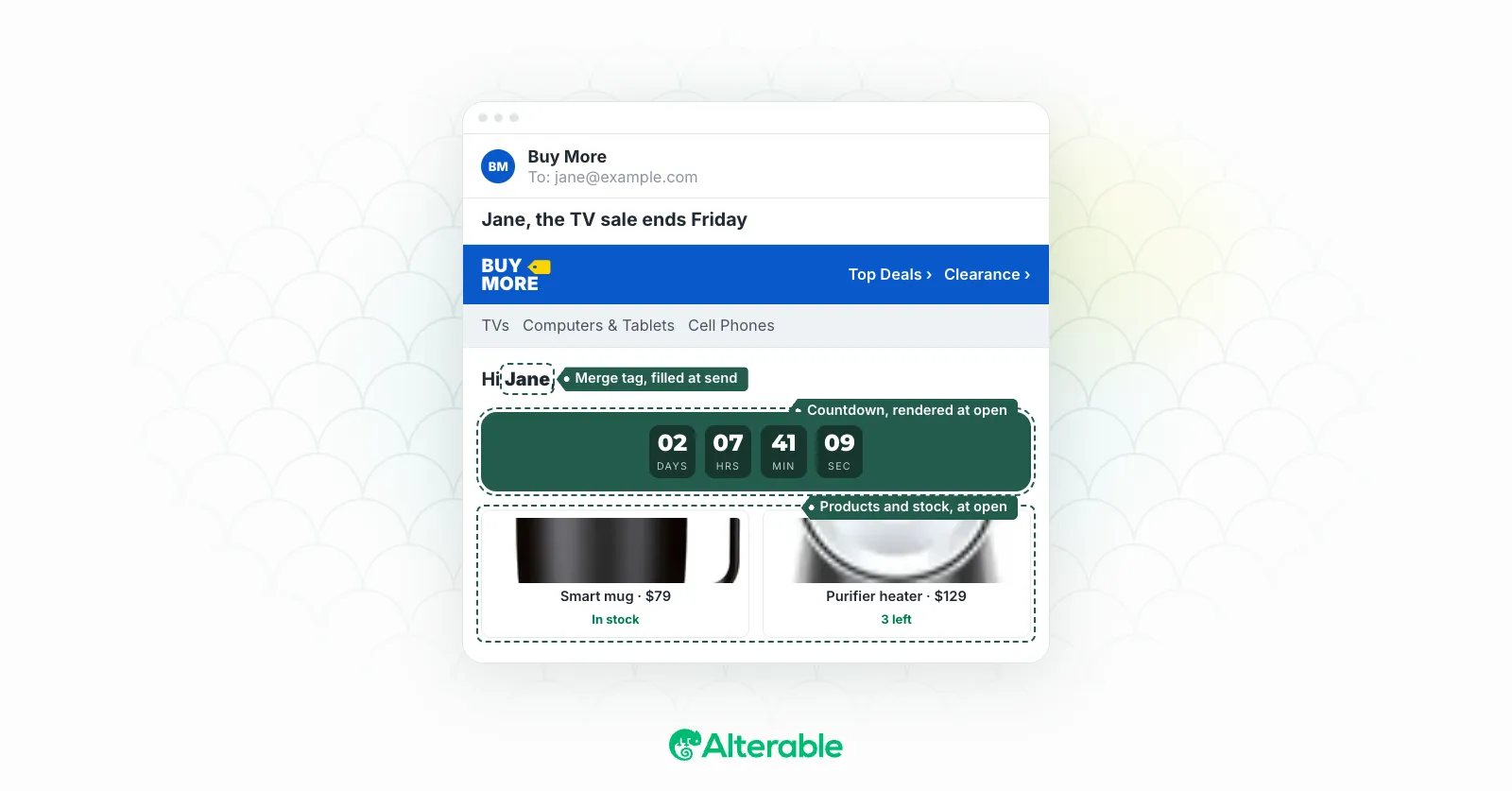
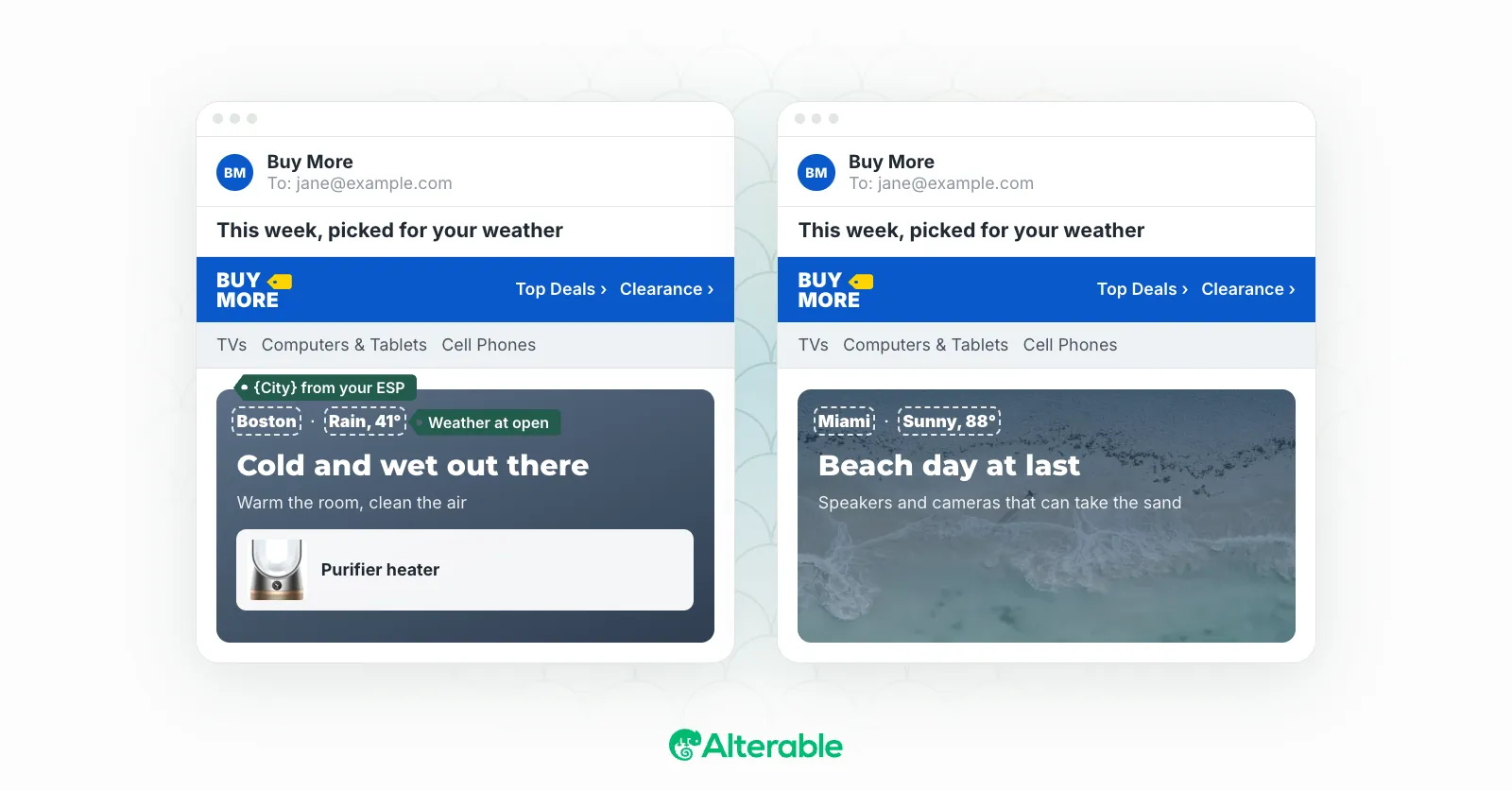
Dynamic images make that reach-out land harder. Instead of a generic “you left something behind,” you send an email that shows the exact product they were looking at: the right color, the right price, sometimes with a timer counting down to when their cart expires. I’ve seen this level of specificity consistently outperform text-only recovery emails, often by a significant margin. The difference isn’t subtle.
Here’s how to set it up and make it work.
Why Dynamic Images Work So Well in Cart Recovery
Cart recovery emails are already timely and relevant: the subscriber is still in a purchase mindset, and the product is fresh in their memory. But “relevant” and “specific” aren’t the same thing.
A text-only email that says “You left items in your cart” is relevant. An email that shows a photo of the exact navy blue running shoes in size 10 the subscriber was looking at? That’s specific. And specific converts better.
Have you ever abandoned a cart and received a perfectly timed recovery email showing exactly what you left behind? If it included an image of the product, you probably clicked. The product photo re-anchors the subscriber to what they wanted. It bypasses the need to explain anything. They see it, and the purchase decision is suddenly live again.
What Dynamic Images Can Show in Abandoned Cart Emails
The abandoned product image. The most direct use: show a photo of the product the subscriber left behind. This requires passing the product ID (or image URL) to your dynamic image service, which renders it in the email at open time. If the subscriber abandoned multiple items, you have options: show the most recently added item, the highest-value item, a collage of up to three items, or the one with the lowest stock to create urgency.
Hedley & Bennett’s cart email is a clean example of the basic version. The subject asks “Got this on your mind?” and the body answers with the exact item, a pair of charcoal high tops, above a “Complete Your Order” button. Nothing else in the email needs to be personal, because that one image already is.
Hedley & Bennett: Got this on your mind? on Inbox Archive
A personalized product card. Rather than just the product photo, build a dynamic image that functions as a card: product image, name, price, and a personal element like the subscriber’s name or a note like “Reserved for you.” This combines product specificity with personal relevance in a single visual.
A countdown timer with cart expiry. “Your cart is reserved until 5pm today” is more compelling than “Don’t forget your cart.” The timer updates every time the subscriber opens the email, so the urgency stays accurate, not stale. This is the dynamic image type I’ve seen drive the most urgency-based clicks in cart recovery.
An inventory scarcity image. If the product is low in stock, show that: “Only 2 left in your size.” This requires connecting to real-time inventory data, but the payoff in urgency is significant. Scarcity that’s verifiable converts better than manufactured urgency, and your subscribers can tell the difference.
Backcountry runs this play across a whole cart. “Items in your cart are selling out!” is the subject, and the body lists each item, a shelter, a screen room, a pillow, a sleeping pad, a bag, with a “Low Inventory” label on the ones that are actually running low. It’s more persuasive than a single generic warning because the reader can see which item the urgency belongs to.
Backcountry: Items in your cart are selling out! on Inbox Archive
A social proof overlay. A dynamic rating or review count on the product image, like “4.8 stars · 2,340 reviews,” addresses one of the most common reasons people abandon carts: doubt. They were interested enough to add the item. What they often need now is reassurance.
How to Set Up Dynamic Product Images in Cart Emails
Step 1: Capture Cart Data
Your cart abandonment trigger needs to pass product data to your email campaign. At minimum, you need the product ID, product name, product image URL, and price. Most e-commerce platforms, like Shopify, WooCommerce, Magento, can pass this data to your ESP through native integrations or via webhooks.
Step 2: Build Your Dynamic Image Template
In your dynamic image service, create a product card template. Define the layout: where the product image appears, where the name and price render, and where any personalized elements (subscriber name, stock count) will be placed. Make sure the template handles edge cases: long product names and short ones, landscape and portrait images, prices with and without decimal points.
Step 3: Construct the Dynamic Image URL
Build the URL your email will use to request the personalized image. This URL includes the parameters your template needs:
https://next.alterable.com/img?product_img={{product_image_url}}&name={{product_name}}&price={{product_price}}&subscriber={{first_name}}Step 4: Insert Into Your Email Template
Add the dynamic image URL to your abandoned cart email template’s <img> tag. Use your ESP’s merge tag syntax to inject the cart data into the URL. Make sure alt text is also dynamic: “Your {{product_name}} is waiting” is far more useful than “product image” when images are blocked.
Step 5: Handle Multiple Cart Items
Decide how to handle carts with more than one item. Options include showing only the most recently added or highest-value item with a note like “and 2 more items in your cart,” using a collage-style dynamic image showing up to three product thumbnails, or repeating the dynamic image block for each item (supported by some ESPs with loop functionality). For most teams starting out, a single featured product with a text reference to additional items is the cleanest approach.
Step 6: Test With Real Cart Data
Before activating the automation, test with actual product data from your catalog. Use products with long names, short names, very high and very low prices, and images in different aspect ratios. Verify that the dynamic image renders correctly in every case, and confirm the fallback behavior for products with missing images.
Advanced Personalization for Higher Recovery Rates
Timing-based image variants. Your first cart recovery email typically goes out within an hour of abandonment. A second might follow 24 hours later, a third after 48 or 72 hours. The dynamic image in each email can reflect where the subscriber is in that sequence: the first email shows the product straightforwardly, the second adds urgency, the third might pair the product with a discount offer.
Price drop images. If an abandoned product’s price drops after the subscriber left, a dynamic image can surface that automatically, like “Price just dropped to $49,” without requiring you to resend the campaign manually. Your dynamic image service needs access to live pricing data for this to work, but it’s one of the highest-converting triggers I’ve seen for price-sensitive abandoners.
Recommendation images. Not every subscriber will come back for the exact product they left behind. A second dynamic image block, such as “You might also like,” showing similar products gives them another path to purchase. It’s a useful safety net when the original item is out of stock or the subscriber simply moved on.
Best Practices for Dynamic Images in Abandoned Cart Emails
Keep it focused. The cart recovery email’s job is to get the subscriber back to complete their purchase. A product photo, name, price, and one compelling signal (urgency, scarcity, or social proof) are usually enough. Trying to do all three at once tends to dilute each one.
Match the CTA to the image. If your dynamic image shows a countdown timer, your button copy should reflect that urgency. “Complete your purchase before time runs out” lands differently than “Continue shopping.”
Use accurate data only. Never show fake scarcity or false expiry times. A subscriber who clicks through and finds the “only 2 left” product fully in stock will feel misled, and that trust is hard to rebuild.
Optimize for mobile. Cart abandonment emails are opened on mobile far more often than desktop. Your dynamic product images should be designed for small screens: clear photography, readable text at small sizes, and a layout that holds up at 375px width.
Set a clear fallback. If product data isn’t available when the email renders, the fallback should show a relevant category image or a branded placeholder, not a broken image.
What to Measure
Once your dynamic images are live, focus on these metrics:
Recovery rate: The percentage of abandoned carts that result in a completed purchase. This is your primary success metric, everything else feeds into it.
Click-through rate: Are subscribers clicking through to the product page? A high open rate with a low CTR usually means the image isn’t compelling enough to drive action, or there’s a disconnect between the image and the CTA.
Revenue per email sent: More useful than open rate or even recovery rate alone. It captures the actual business impact of your cart recovery program.
Performance by email in the sequence: Which email in your recovery series drives the most completions? This tells you where to focus your dynamic image optimization.
Cart abandonment is one of the clearest buying signals you’ll ever get. The subscriber was there. They chose something. Dynamic images in your recovery emails make sure the follow-up matches that moment: specific, timely, and personal.
Start with the basics: product image, name, price, and a clear CTA. Measure the lift against your current recovery rate. Once you have that baseline, layer in countdown timers, scarcity signals, and price-drop triggers, and keep measuring as you go.