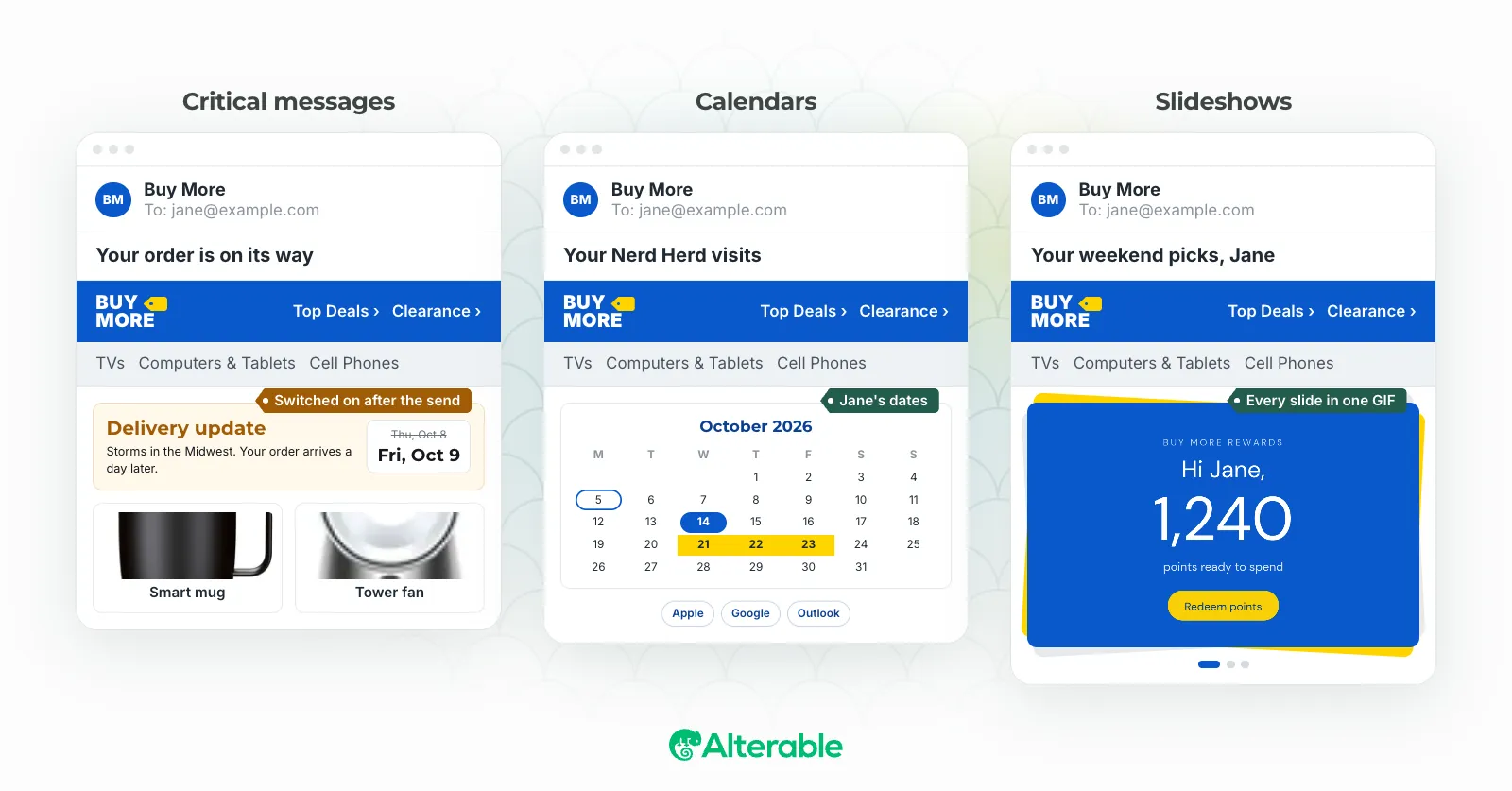
Most email marketers know that dynamic content can improve engagement. Fewer know exactly how it works under the hood, and that gap leads to missed opportunities, broken implementations, and campaigns that don’t deliver on their potential.
I’ve noticed this pattern repeatedly: a marketer sees a competitor’s email with a personalized banner or a live countdown timer, wants to replicate it, and then either gives up when the setup feels opaque or ships something broken because they skipped a step they didn’t know mattered. The mechanics aren’t complicated once you understand them. But you do need to understand them.
Dynamic image URLs are the engine behind almost every personalized image you see in email. Here’s how they work and how to use them well.
What Is a Dynamic Image URL?
A dynamic image URL is a web address that generates or serves a different image depending on parameters passed in the URL itself. Instead of pointing to a fixed file like:
https://example.com/images/banner.jpgA dynamic image URL looks more like:
https://next.alterable.com/img?name=Sarah&product=running-shoes&color=blueWhen a subscriber opens your email, their email client makes a request to that URL. A server reads the parameters, generates the right image, and sends it back. The subscriber sees an image built specifically for them. The HTML in the email never changes, only the image that URL serves does.
How Dynamic Image URLs Work at Open Time
This is the key distinction between dynamic and static images: dynamic images render when the email is opened, not when it’s sent.
Here’s the sequence:
- You build your email with a dynamic image URL in the
<img>tag’ssrcattribute - You merge subscriber-specific data into the URL at send time (name, purchase history, location, etc.)
- The subscriber opens the email; their email client makes a request to that URL
- The image server reads the parameters, generates the personalized image, and returns it
- The subscriber sees their personalized image
Because rendering happens at open time, the image can reflect real-time data, current inventory, live pricing, time remaining until a deadline, not just the data you had when you hit send.
Merging Subscriber Data Into Image URLs
For the dynamic image to work, you need to inject subscriber-specific values into the URL at send time. You do this with merge tags, the same mechanism you already use to personalize subject lines and body text.
In most ESPs, the syntax looks something like this:
https://next.alterable.com/img?name={{first_name}}&city={{city}}At send time, your ESP replaces {{first_name}} with “Sarah” and {{city}} with “Chicago,” so the actual URL the subscriber’s email client requests becomes:
https://next.alterable.com/img?name=Sarah&city=ChicagoThe image server uses those values to generate the right image for that subscriber.
A few things to watch for:
URL encoding. Subscriber data with special characters (spaces, accents, ampersands) needs to be URL-encoded. Most ESP merge tags handle this automatically, but verify yours does before sending.
Empty fields. If a subscriber has no value for a field you’re using, you’ll get a broken or unexpected image. Define a default for every parameter your URL uses.
Case sensitivity. Some image servers treat URL parameters as case-sensitive. “sarah” and “Sarah” might render differently if your image includes overlaid text.
What You Can Control With URL Parameters
The parameters you pass are entirely up to your image generation setup. Common uses:
- Name personalization: Overlay the subscriber’s first name onto a banner, gift card, or product image
- Product images: Pass a product ID and serve the matching product photo, dynamically cropped and branded
- Location: Show a store map, a weather-appropriate product, or a region-specific offer
- Loyalty tier: Display a different badge or reward graphic depending on the subscriber’s status
- Open time: Pass a timestamp and let the server calculate time remaining until a deadline, enabling a live countdown timer
- Device or client: Serve a different image format or resolution depending on what the subscriber is using to open
Setting Up Dynamic Image URLs: Two Approaches
Option 1: Use a dynamic image platform. Services like Alterable are built specifically for this. You define your image template (layout, fonts, colors, which fields to personalize) and the platform gives you a URL format to use in your campaigns. Plug your merge tags into that URL, and the platform handles rendering, hosting, caching, and fallbacks. For most email marketing teams, this is the right approach. There’s no server infrastructure to manage on your end, and the hard parts, fast rendering, email client compatibility, fallback handling, are taken care of.
Option 2: Build your own image server. If you have development resources and specific requirements that off-the-shelf tools don’t meet, you can build a custom image generation service. This typically involves a backend that receives URL parameters and uses a rendering library to generate images on demand. You get full control, but you also own the infrastructure, caching, uptime, and compatibility testing. For most teams, that tradeoff isn’t worth it unless the requirements are genuinely unusual.
Caching and Cache Busting
Email clients (and the servers between them) can cache images. That means a subscriber might see an image from the first time they opened your email, even if the image should have changed since then. A countdown timer that expired yesterday, for example.
To force every open to request a fresh image, add a cache-busting parameter to your URL, typically a timestamp or random value that changes with each open:
https://next.alterable.com/img?name=Sarah&t={{timestamp}}The image server ignores the timestamp for rendering purposes, but the email client sees a different URL and makes a fresh request rather than serving a cached version. It’s a small thing that makes a meaningful difference for time-sensitive content.
Testing Dynamic Image URLs Before You Send
Test your dynamic image URLs manually before any send. Build a handful of representative URLs using real subscriber data, your best-case scenario, your worst case (empty fields, very long names, unusual characters), and your default fallback. Open each one directly in a browser. If the image renders correctly there, it will render correctly in an email client. If it breaks in the browser, it will break in email too.
Then send test emails to real clients: Gmail, Outlook, Apple Mail. Don’t rely solely on your ESP’s preview since previews don’t always request dynamic URLs the same way a live email client does. What you see in the preview is not always what your subscribers see.
The Payoff
Dynamic image URLs add a layer of complexity to your email builds. That complexity pays off in a few concrete ways:
- Every subscriber sees an image that’s relevant to them specifically
- Your email stays current after it’s sent, reflecting real-time data at open time
- One template serves the entire list with personalized visuals, rather than requiring separate campaigns per segment
- You can update the image experience without resending, change the template on the server side, and all future opens reflect the change
For email marketers who already use merge tags for text personalization, dynamic image URLs are the natural next step. The logic is identical, you’re just applying it to images instead of words.
A good first test: add a banner with the subscriber’s first name to a single campaign. Measure the impact against a control. Then build from there.